Was this helpful?
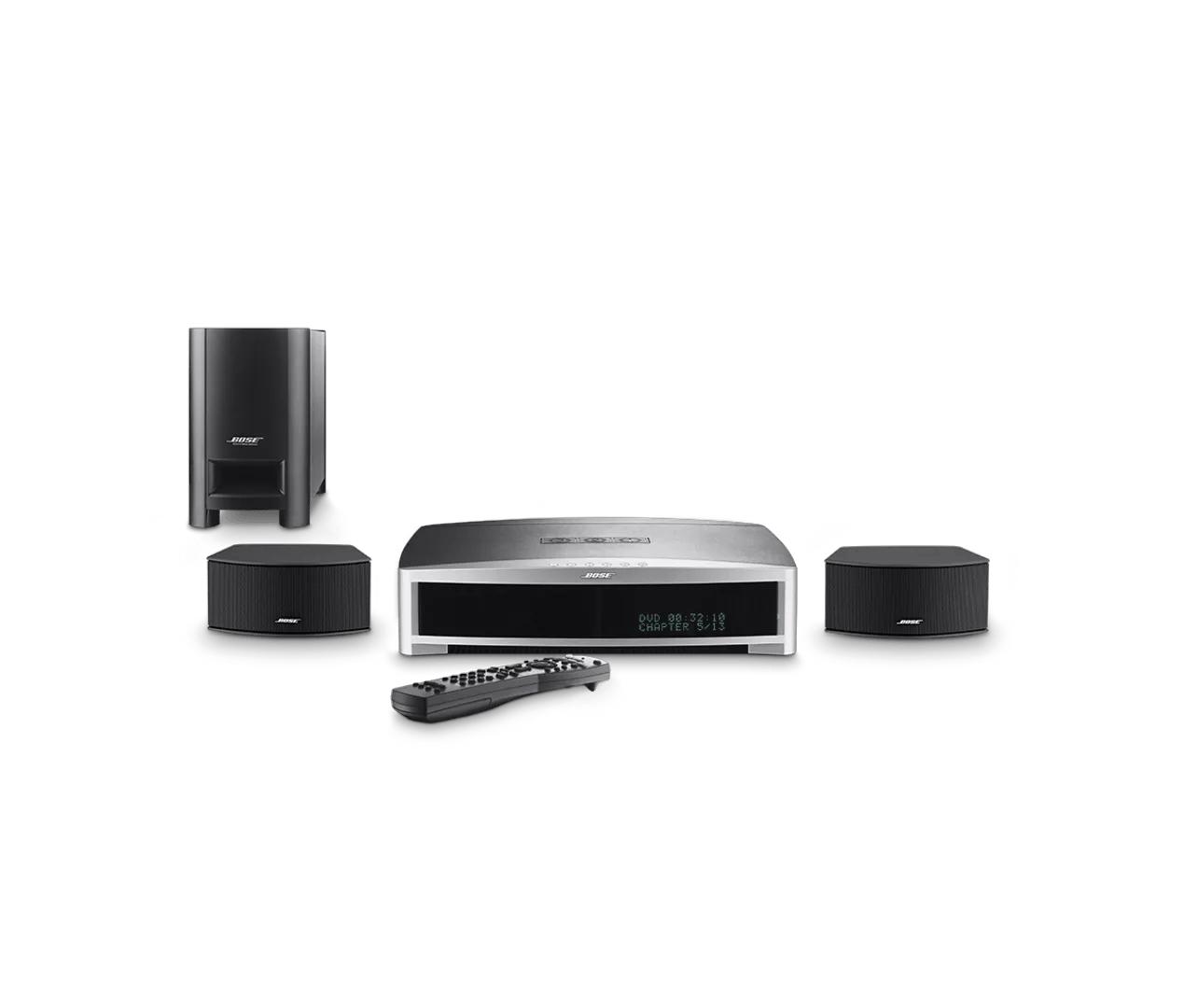
Setting video resolution | 3·2·1® GS Series III DVD home entertainment system
Setting video resolution.
Setting the video resolution.
- In the System menu, set the DVD Image option to "Modified" by following these steps:
- Make sure the TV is on with the correct input selected
- Press the System button on the remote
- Press the right arrow on the remote to select the Video icon
- Press the down arrow until "DVD Image" is selected
- Press the right arrow to select the current option
- Press the up or down arrow to change to the desired setting:
- Original: Prohibits any change to the DVD video resolution. When selected, Video Resolution may still be available in the Settings menu
- Modified: Allows the user to select the DVD video resolution sent to the TV from the media center via HDMI
- Press the Exit button to leave the System menu
- Change the Video Resolution in the Settings menu. To change Video Resolution, follow these steps:
- From the media center display
- Select DVD as the source
- Remove any disc that may be in the tray
- Press the Settings button
- ">Video Res:" will appear on the media center display
- Press the Right arrow so the display reads "Video Res:>"
- Use the Up or Down arrows on the remote to select the appropriate setting:
- 480/576p (lowest quality)
- 720p
- 1080i
- 1080p (highest quality)
Note: The system sets the default video resolution automatically based on information from the TV (EDID)
- Press the Exit button to exit the Settings menu
- From the on-screen menu
- Be sure the TV is on with the correct input selected
- Select DVD as the source
- Press the Settings button
- Press the Down until Video Resolution is highlighted
- Press the Right arrow to highlight the current setting
- Use the Up or Down arrows on the remote to select the appropriate setting:
- 480/576p (lowest quality)
- 720p
- 1080i
- 1080p (highest quality)
Note: The system sets the default video resolution automatically based on information from the TV (EDID)
- Press the Exit button to exit the Settings menu
- From the media center display