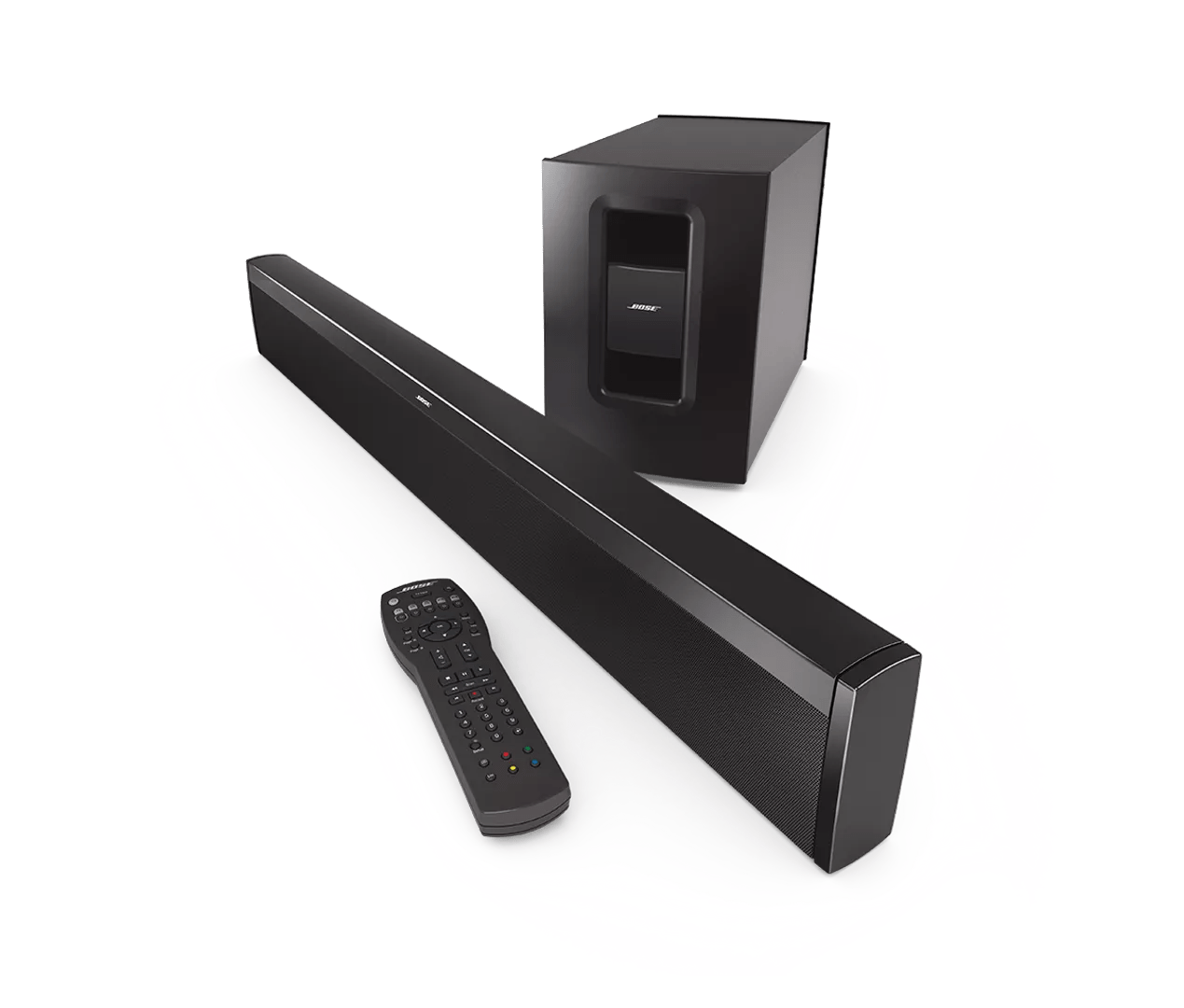
Too little bass or too much treble from product | CineMate® 1 SR digital home theater speaker system
cinemate®-1-sr-digital-home-theater-speaker-system
CineMate® 1 SR digital home theater speaker systemSold from 2011 - 2014

Too little bass or too much treble from product | CineMate® 1 SR digital home theater speaker system

If the sound lacks bass or has too much treble:

Try the following:

Check if the status light is lit on the bass module.

The connection panel on the back of the bass module has a status light. When receiving power and connected to the soundbar, the light should be lit or blinking. If the light is lit, see Understanding LED indicator status lights and information for more info.

Be sure the bass adjustment is set properly.

If the bass setting is too low or too high, the overall sound quality may be impaired. Set the bass to the middle level for normal performance and adjust as needed. For information, see Adjusting the tone controls on your product.

Check if the lights on your system show the bass module is connected.

If the system lights do not indicate the bass module is connected, try reconnecting the bass module. For more info, see Understanding LED indicator status lights and information and Connecting the bass module.

Check the audio settings of the connected device.

Many devices (i.e. cable boxes, game consoles, Blu-ray players, etc.) let you to adjust audio processing (i.e. bass, treble, compression, etc.). Disable any audio processing settings in the device menu or adjust any other related settings, then try again.

Adjust bass and treble controls on the connected audio device.

Many devices have sound options, like bass and treble controls or compression. Check the device menu for sound processing options and disable them. If the issue is resolved, re-add only the necessary sound options. For adjustable options, try small adjustments.

Try connecting a different audio device.

If available, connect another audio device using the same cables and connections to determine if the issue is related to the first device or its settings.

Run the ADAPTiQ audio calibration to optimize the sound of your system.

Since different environments affect how sound is heard, use ADAPTiQ can calibrate you system. It listens to how your speakers sound in your room, then adjusts the sound as needed to optimize sound quality. For more info, see ADAPTiQ system setup and deactivation.

Try a different app.

If the issue only occurs with a particular app, it is likely related to the app or app settings.

Replace the cables used to connect your product

Try replacing the cables that connect your product. If no issue is heard with new cables, the first set of cables is the issue.

The Acoustimass module and soundbar may need service.

If the steps provided do not resolve your issue, the Acoustimass module and soundbar may need service. Follow the link below for more information on how to service your product. Depending on your product and region, you will be provided a contact number or the ability to setup service online.

Click here to start service

Determine if the room size is too large or the distance from the system is too far.

The volume from the system will seem lower in larger rooms than in smaller rooms. The level of sound will decrease when heard from greater distances. Try to place your system within 20 feet (6 meters) of the listening area.

Reset your product.

Much like rebooting a smartphone, your product might need to be reset on occasion to correct minor issues. For more information, see Resetting your product.

Relocate the Acoustimass module to increase bass.

Move the Acoustimass module closer to a wall or corner to increase bass response. Bass response changes with the location of the module.

Adjust the bass control on your system.

On the back of the Acoustimass bass module, rotate the Bass knob to turn up or down the amount of bass produced by your system.