Was this helpful?
Setting up your product | LIFESTYLE 550, FIVE SPEAKER HOME THEATER
To connect the components of your system:
Connect the AC-2 speaker wire adapters
Connect the bare wire pairs at the end of the front and rear speaker cables to the five AC-2 adapters speaker wire adapters:- Use the included screwdriver to loosen the screws on the five AC-2 adapters
- Connect the black and red bare wire pairs on each speaker cable to the corresponding colored connectors on the adapters
Tip: Insert only the metal portion of the wires into the adapters - Use the screwdriver to tighten the screw on the adapters to secure the wires
Connect the front speakers
- Connect the front speaker cables to the 6-pin Front Speakers jack on the back of the media console. (Note: The 4-pin Front Speakers connector is not used)
- Connect the AC-2 adapters at the end of the front speakers cable to the front speakers:
- Connect the L+ cable to the speaker on the left of the TV
- Connect the R+ cable to the speaker on the right of the TV
- Connect the C+ cable to the center speaker
Tip: The left and right speakers are determined by your left and right while facing the TV
Connect the rear speakers
Using a wired connection:
If you are not using the wireless receivers, press the Teletext button on the remote (below the Blue button) to proceed.Using a wireless connection:
- Connect the rear speaker cables from the rear speakers to the wireless rear speaker receivers
- Set the switch on one wireless receiver to L (for the rear left speaker) and set the switch on the other recevier to R (for the rear right speaker)
Tip: The left and right speakers are determined by your left and right while facing the TV - Connect power cords from both wireless receivers to AC (mains) outlets.
Connecting the console, bass module and remote control
- Connect the HDMI cable from the OUT TO TV jack on the system console to your TV
- Connect the power supply from the POWER jack on the system console to an AC (mains) outlet
- Connect a power cord from the power supply to an AC (mains) outlet
- Connect a power cord from the bass module to an AC (mains) outlet
- Install the four batteries in the remote. Be sure to match the + and - markings on the batteries to the corresponding marks in the battery compartment
Run ADAPTiQ to maximize the system sound.
- On the remote control, press the Setup button
- Tip: If the system menu does not appear on your TV, be sure the correct TV input is selected
- Scroll down to ADAPTiQ, then press the OK button
- Select Run and follow the on-screen instructions.
Frequently Asked Questions
How do I connect other devices to my system?
To connect audio from your TV:
For TVs with ARC:
Connect an HDMI cable from the HDMI ARC jack on the TV to the Out to TV jack on the back of the system console.Tip: You might need to enable CEC and/or ARC in the TV menu before sound if heard from your system.
For TVs without ARC:
- Connect an HDMI cable from the Out to TV jack on the back of the system console to an available HDMI input on your TV
- Power on your system and the TV
- On your remote console, press the SETUP button. (Tip: If the system menu does not appear on your TV, be sure the correct TV input is selected)
- Scroll to and select Advanced TV Audio Setup, then follow the on-screen instructions
To connect a device to your product:
- On the system console, press the Setup button
Tip: If the system menu does not appear on your TV, be sure the correct TV input is selected - On the remote control, scroll down to select Device Management, then press the OK button
- Select Add, then press the OK button
- Follow the on-screen instructions to connect the device.
How do I connect to Wi-fi?
Enter Setup mode.
- Power on your product
- On the remote control, press the SETUP button
Tip: If the system menu does not appear on your TV, be sure the correct TV input is selected - From the menu, select NETWORK SETUP and follow the on-screen instructions
- For next steps, refer to the Bose app or instructions that asked you to enter Setup mode.
How do I set up the SoundTouch App?
To set up your system using the SoundTouch app:
Before you begin
- If using an iOS device, turn on Bluetooth® in the device settings
- If prompted to allow Location Service or Local Access Network permissions for the app, allow them
Tip: These are used so the app can detect and control your product. If you do not allow them, the app will not find your product
Setting up your system
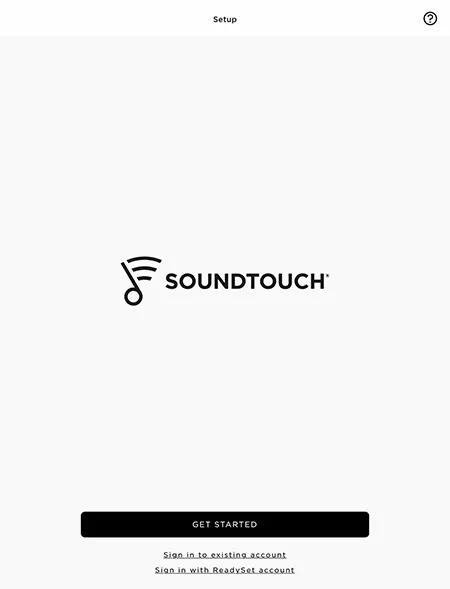
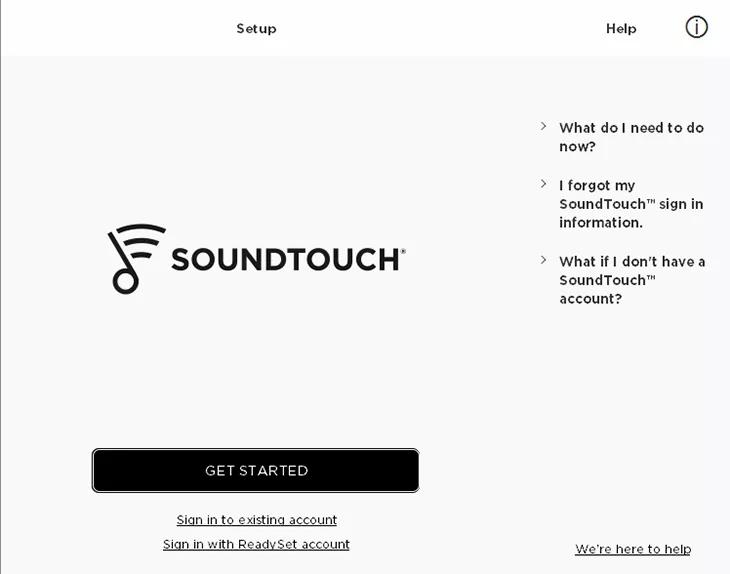
- Open the SoundTouch app
- Click Sign in to existing account or GET STARTED to create an account. Then follow the app instructions to log in
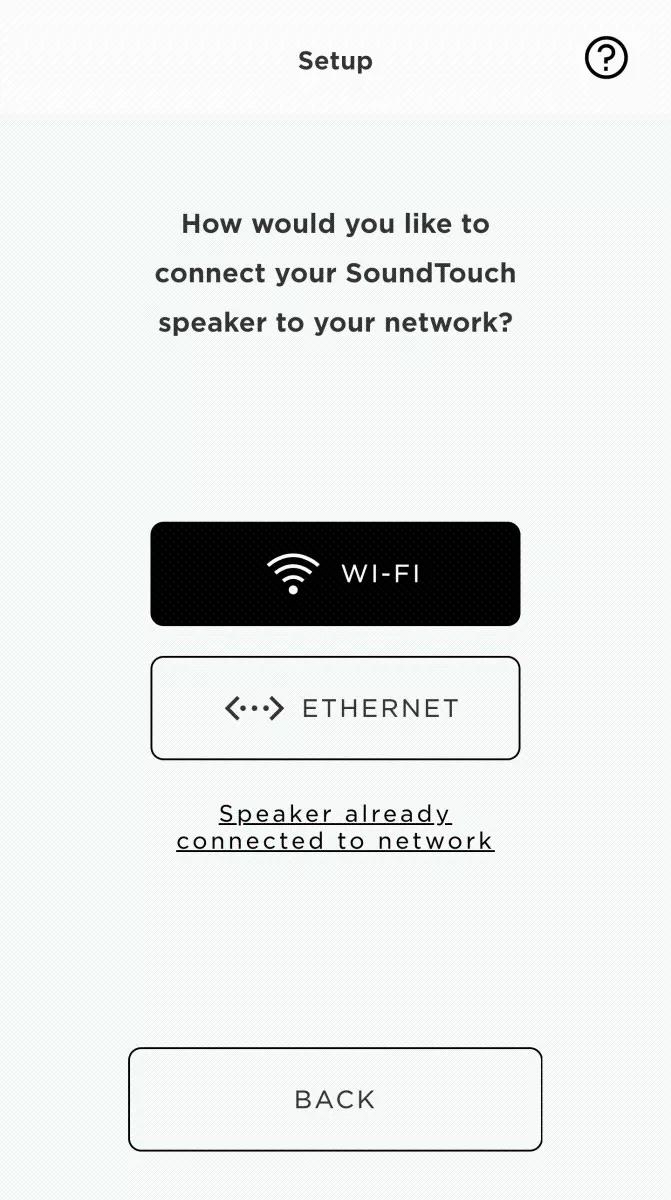
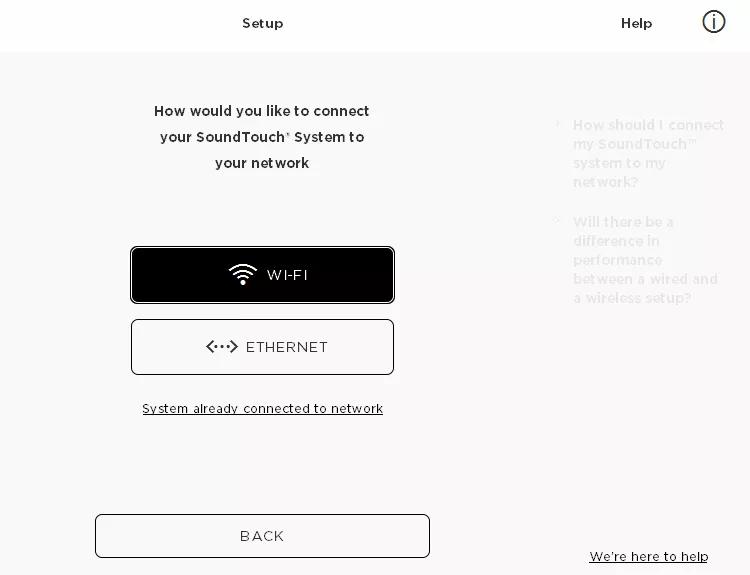
- Tap WI-FI and wait while the app searches for networks
- Connect your device to the Bose SoundTouch network:
- If the app prompts you to put your system in setup mode, follow the app instructions to do so
- Android devices should automatically connect to the network. If not, go to the device Wi-Fi settings and select the Bose network
- iOS devices with prompt you to go to the device Wi-Fi settings and select the Bose network
- If you don't see the Bose network, tap I DO NOT SEE THIS NETWORK for instructions on putting your product in setup mode, then go to the device Wi-Fi settings and connect to the Bose network
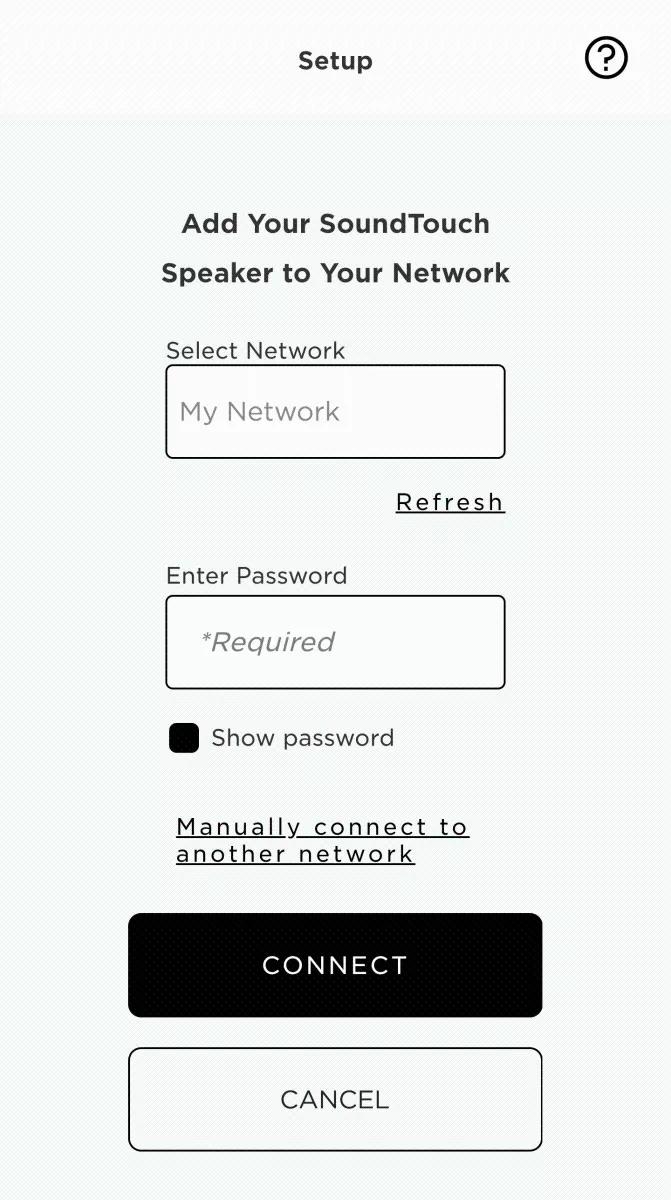
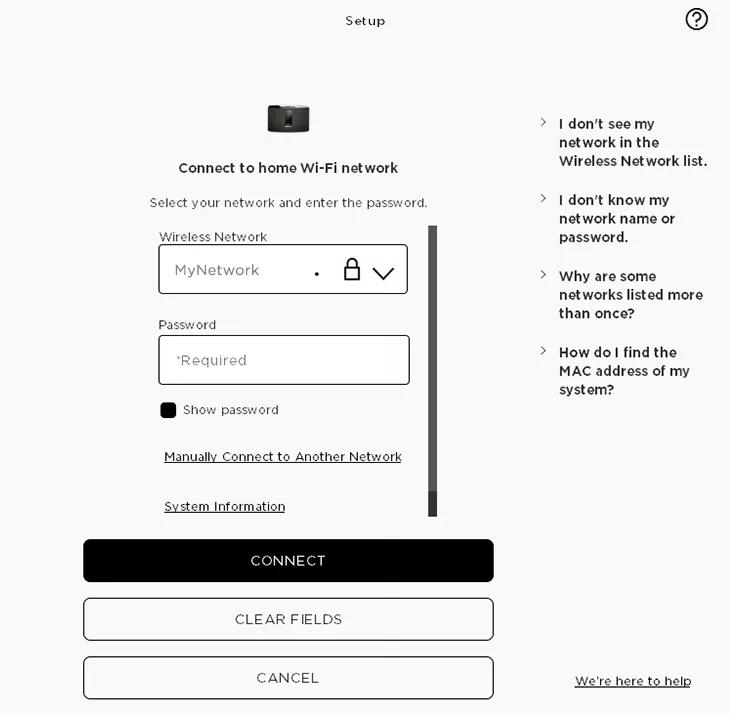
- Tap the Select Network field to choose your network, then enter the password and tap CONNECT
Tip: If your network doesn't appear, tap Refresh to re-scan for available networks
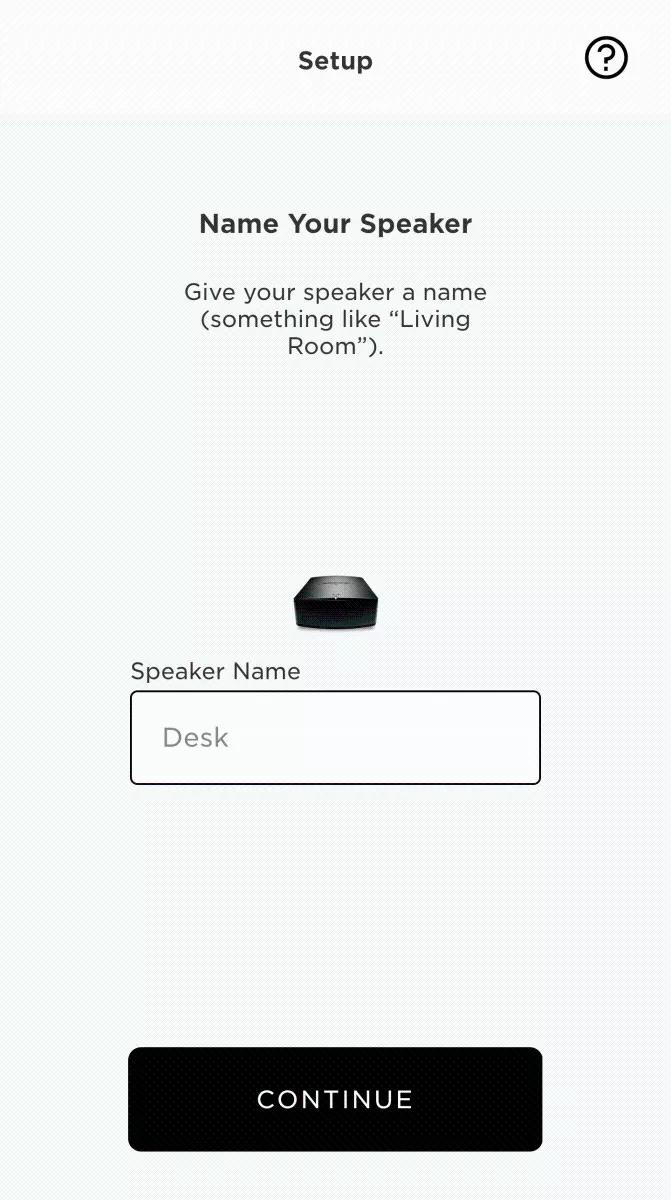
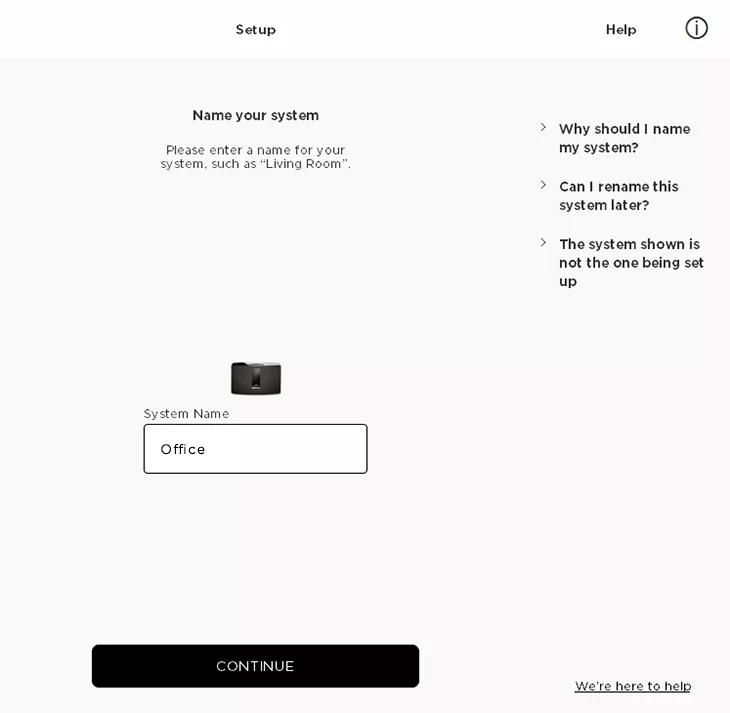
- Enter a name for your system (or leave the name unchanged), then tap CONTINUE
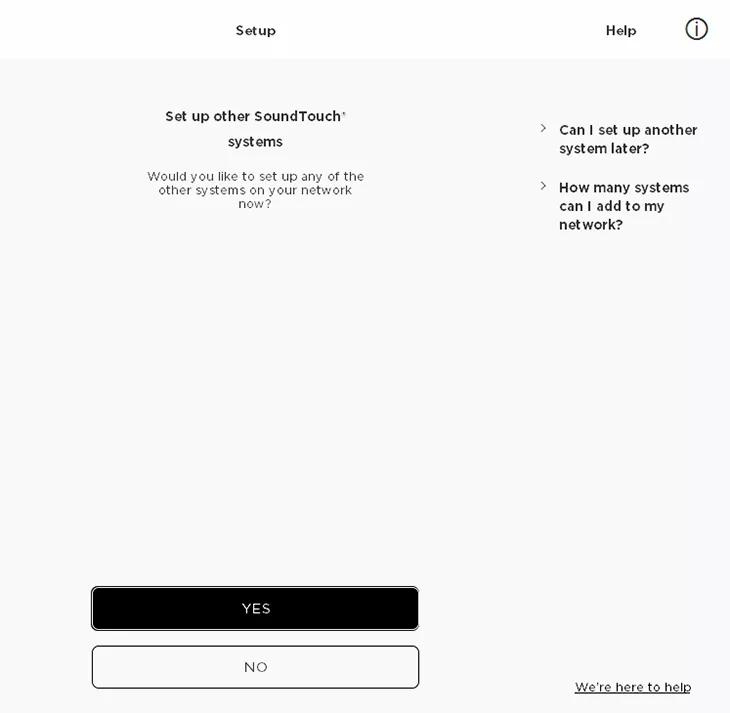
- If you need to connect another system, tap YES and repeat these steps. If not, tap NO to finish.
To set up your system using a computer and a USB cable:
- On a computer, open the SoundTouch app
- Click Sign in to existing account or GET STARTED to create an account. Then follow the app instructions to log in
- Click WI-FI
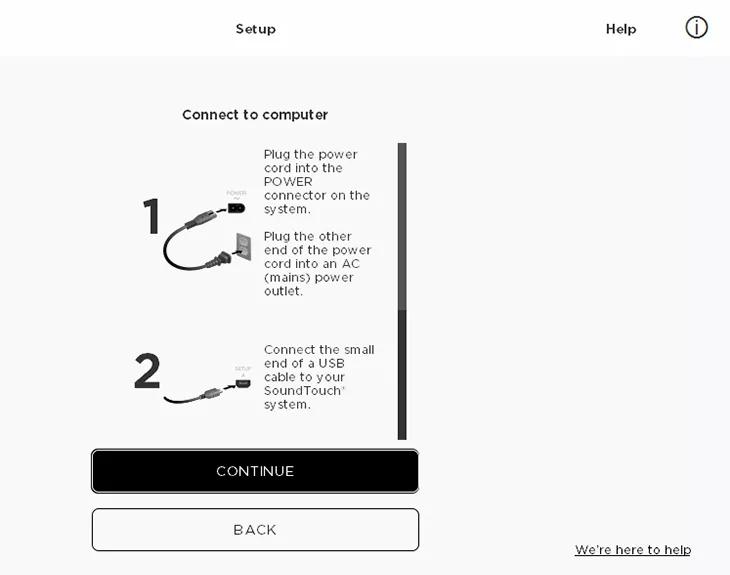
- When prompted, connect a USB cable between the computer and your SoundTouch system
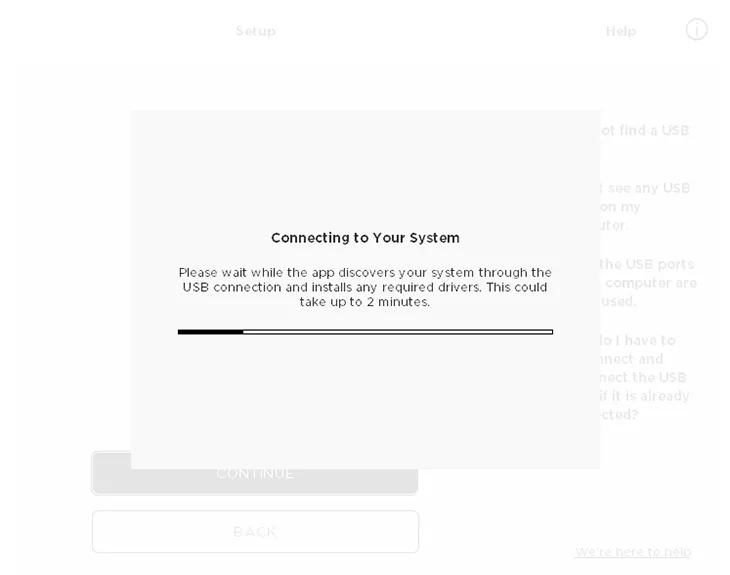
- Click CONTINUE and wait for the system to be detected
- Select your home wireless network from the drop-down menu and enter the network password
- Once your system connects, disconnect the USB cable from the computer so the computer reconnects to the home wireless network
Tip: The Wi-Fi indicator on your system blinks white while connecting and solid white once connected
- Enter a name (or leave the name unchanged), then click CONTINUE
- If you have another system to setup, click YES to set it up; if not, click NO to exit.
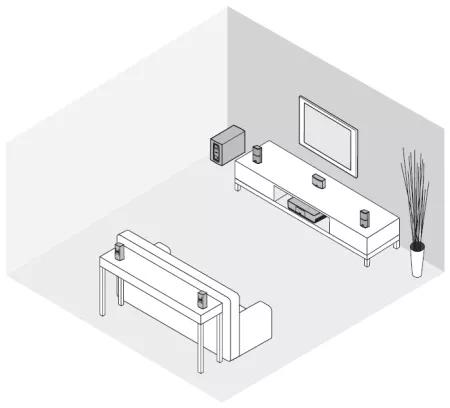
Where should I place my speakers?
Placement suggestions:
- Place one speaker to the left and one speaker to the right of the TV
- Keep each speaker within 3 feet of the TV, if possible
- Keep speakers at least 3 feet apart
- Aim the speakers toward the listening area
- When placing the speakers in an enclosed bookcase shelf, position them at the front edge of the shelf
- Place the center speaker on a stable and level surface directly above or below the TV
- The rear (surround) speakers should be located in the rear half of the room, preferably behind the listener
- Place the speakers at ear level or higher if possible
- Place the console near the TV. Do NOT place the TV on top of the console
- Make sure there is an AC (mains) outlet nearby
- Stand the Acoustimass module on its rubber feet along the same wall as the TV, or along any other wall in the front third of the room
- Do not block the vent openings at the back of the Acoustimass module. This could cause the module to overheat
- The Acoustimass module can safely sit on its side, but do not stand it on the end with the port or on the end opposite the port
- The Acoustimass module is not magnetically shielded, and must be placed at least 18 to 24 inches from a TV monitor
Note: Only CRT style TVs are affected. This includes tube style TVs and rear projection with CRTs - Choose a stable and level surface. Vibration can cause the Acoustimass module to move, particularly on smooth surfaces like marble, glass or highly polished wood
- Make sure there is an AC (mains) outlet nearby
- Place the SoundTouch wireless adapter within 1 to 6 ft. (.3 to 1.8 m) of the console
- Do not connect the adapter to the console until prompted by the SoundTouch app