Was this helpful?
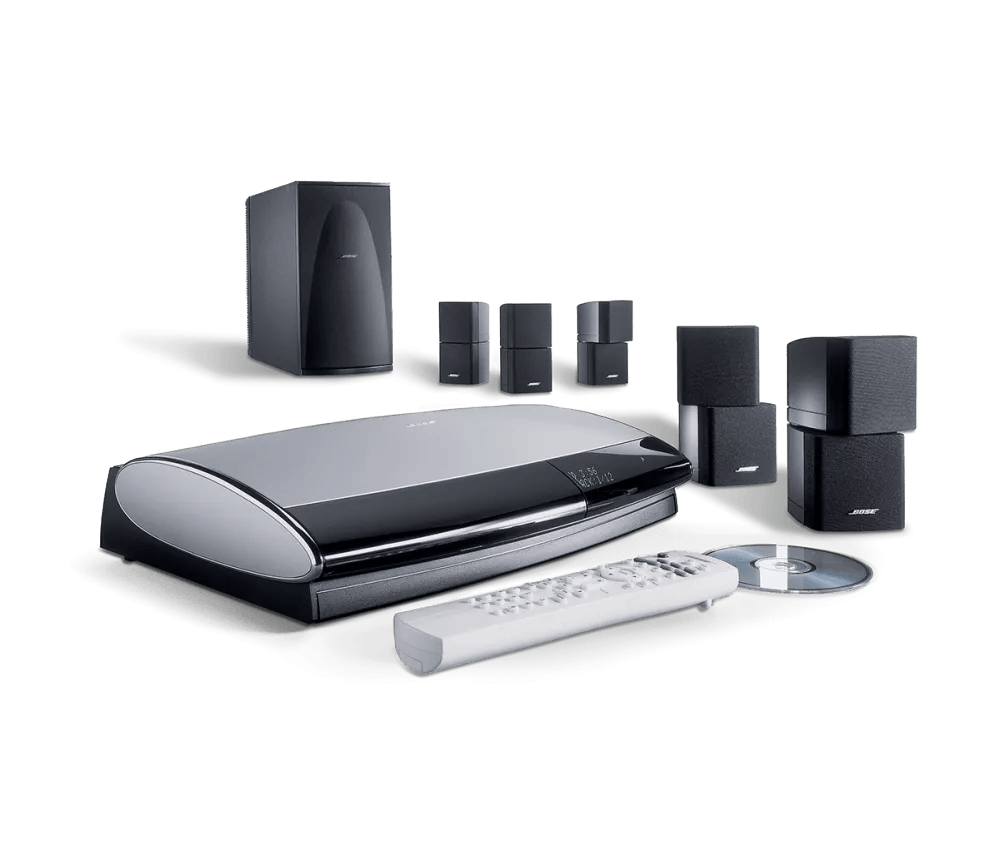
No picture from a connected video device | Lifestyle® 28 Series II system
Which device is being used?
Cable box
Try a different channel.
Be sure the cable box is connected properly.
When using a component video adapter, be sure the external device is connected properly to the media center.
If using the component video adapter, be sure the correct adapter is connected.
- If this connector is black, follow it to the opposite female end: If the female end is red, it's a series 1 adapter; if the female end green, it's a series 2 adapter
- If this connector is yellow, it's a series II adapter
When using an RF modulator, be sure the correct TV channel is selected.
Connect the video output of the source directly to the TV.
Replace the video cable used to connect your product.
Try connecting a different audio device.
Your media center may need service.
Click here to start service
DVD or Blu-ray player
Be sure the DVD or Blu-ray player is connected properly.
When using a component video adapter, be sure the external device is connected properly to the media center.
If using the component video adapter, be sure the correct adapter is connected.
- If this connector is black, follow it to the opposite female end: If the female end is red, it's a series 1 adapter; if the female end green, it's a series 2 adapter
- If this connector is yellow, it's a series II adapter
When using an RF modulator, be sure the correct TV channel is selected.
Connect the video output of the source directly to the TV.
Replace the video cable used to connect your product.
Try connecting a different audio device.
Your media center may need service.
Click here to start service
DVR
Be sure the DVR is connected properly.
When using a component video adapter, be sure the external device is connected properly to the media center.
If using the component video adapter, be sure the correct adapter is connected.
- If this connector is black, follow it to the opposite female end: If the female end is red, it's a series 1 adapter; if the female end green, it's a series 2 adapter
- If this connector is yellow, it's a series II adapter
When using an RF modulator, be sure the correct TV channel is selected.
Connect the video output of the source directly to the TV.
Replace the video cable used to connect your product.
Try connecting a different audio device.
Your media center may need service.
Click here to start service
Game console
Check the video resolution setting of the connected device.
Be sure the game console is connected properly.
When using a component video adapter, be sure the external device is connected properly to the media center.
If using the component video adapter, be sure the correct adapter is connected.
- If this connector is black, follow it to the opposite female end: If the female end is red, it's a series 1 adapter; if the female end green, it's a series 2 adapter
- If this connector is yellow, it's a series II adapter
When using an RF modulator, be sure the correct TV channel is selected.
Connect the video output of the source directly to the TV.
Replace the video cable used to connect your product.
Try connecting a different audio device.
Your media center may need service.
Click here to start service
Satellite box
Try a different channel.
Be sure the satellite box is connected properly.
When using a component video adapter, be sure the external device is connected properly to the media center.
If using the component video adapter, be sure the correct adapter is connected.
- If this connector is black, follow it to the opposite female end: If the female end is red, it's a series 1 adapter; if the female end green, it's a series 2 adapter
- If this connector is yellow, it's a series II adapter
When using an RF modulator, be sure the correct TV channel is selected.
Connect the video output of the source directly to the TV.
Replace the video cable used to connect your product.
Try connecting a different audio device.
Your media center may need service.
Click here to start service
VCR or DVD recorder
Be sure the VCR or DVD recorder is connected properly.
When using a component video adapter, be sure the external device is connected properly to the media center.
If using the component video adapter, be sure the correct adapter is connected.
- If this connector is black, follow it to the opposite female end: If the female end is red, it's a series 1 adapter; if the female end green, it's a series 2 adapter
- If this connector is yellow, it's a series II adapter
When using an RF modulator, be sure the correct TV channel is selected.
Connect the video output of the source directly to the TV.
Replace the video cable used to connect your product.
Try connecting a different audio device.
Your media center may need service.
Click here to start service
Check the connections of the VCR or DVD recorder.
Other connected video device
Be sure the external video device is properly connected to the Bose system.
Note: Be sure the same type of video cable (composite cable, S-Video cable or the component adapter) is connected to both the Video IN and Video OUT jacks of the media center. The media center does not convert one type of video signal to another. For example, connect composite cables to both the Video IN and OUT jacks
When using a component video adapter, be sure the external device is connected properly to the media center.
If using the component video adapter, be sure the correct adapter is connected.
- If this connector is black, follow it to the opposite female end: If the female end is red, it's a series 1 adapter; if the female end green, it's a series 2 adapter
- If this connector is yellow, it's a series II adapter
When using an RF modulator, be sure the correct TV channel is selected.
Connect the video output of the source directly to the TV.
Replace the video cable used to connect your product.
Try connecting a different audio device.
Your media center may need service.
Click here to start service
See if the issue is with connected devices or the built-in video player.
Confirm the TV is on and the proper input is selected.
The system will not pass a signal through in DVD mode.
Reset the connected audio or video device.
Check that that the correct audio input source is selected.
If multiple audio sources are available or connected, be sure the correct source is selected. For example, if the audio device you want to hear is connected to the an input labelled AUX, be sure that AUX input selected.