Was this helpful?
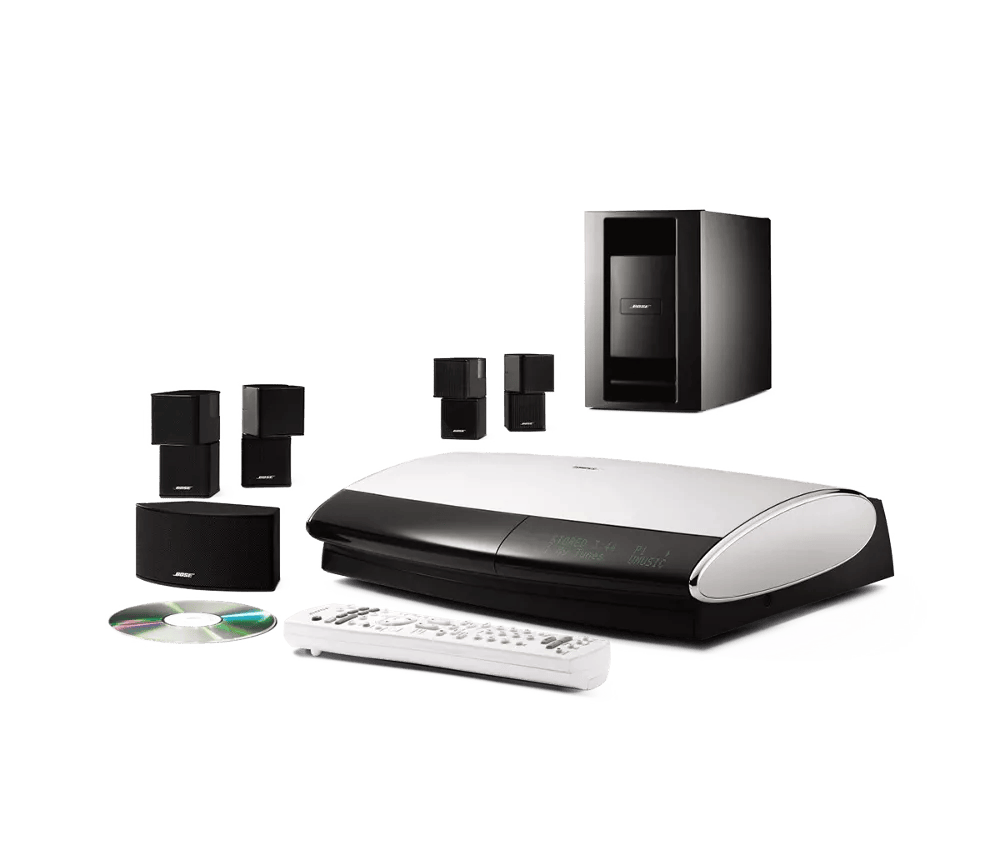
Programming your remote | Lifestyle® 48 Series III DVD home entertainment system
Use the remote code lookup tool to find a compatible code for the device.
To program your remote:
- On the remote control, press the System button
- Scroll right to select Remote Control, then press the Enter button
- Scroll down to select IR Control and confirm it is (or set it to) Off
- Scroll down to select TV Control, then press the Enter button
- Scroll up or down to select the source used to change TV channels, then press the Enter button. (For example, if you have a cable box connected to CBL-SAT on the system console, select CBL-SAT)
- Scroll up to select TV Brand, then press the Enter button.
- Scroll to select the TV brand, then press the Enter button
- Scroll down to select TV Code, then press the Enter button
- Test the remote:
- If it controls your device, press the Enter button to finish
- If it does not control your device or has limited functionality, repeat these steps with the next code for the brand.
Note: Since the remote does not have an AUX power button, a device connected to AUX cannot be powered on and off using the Bose remote.
Tip: Your system console controls other devices, not your remote. If you have difficultly controlling a device, connect an IR emitter. A maximum of three emitters can be used with your system.
- Plug in the emitter to the IR Emitter jack on the system console
- Place the flat side of the IR emitter on or near the remote sensor of the device(s) to be controlled.
Tip: The remote sensor on the device is often a small translucent plastic on the front of the device.
Lifestyle DVD media center built-in IR emitter and receiver location.
To connect an IR emitter:
- Plug in the emitter to the IR Emitter jack on the system console
- Place the flat side of the IR emitter on or near the remote sensor of the device(s) to be controlled
To use the TV sensor, follow these steps:
- Connect the TV sensor to the TV Sensor jack on the media center connection panel. (On the panel, the TV Sensor jack is immediately above two other jacks of the same type: the IR Emitter, and Serial Data jacks)
- Turn the TV on and select the correct input
- Press the System button on the remote
- Press the right arrow until the Video icon is selected, and press Enter
- Press the down arrow until "TV Power Status" is selected
- Move the flat side of the TV sensor slowly around the back of the TV until TV Power Status indicates: "TV On"
- Attach the TV sensor to this location with the adhesive strip provided
- Press the up arrow until "TV Power" is selected, and press Enter
- Press the down arrow until "Automatic" is selected, and press Enter
- Press the Exit button to leave the System menu
Third party control information for installers.
Five items are needed in order to control a Lifestyle without using the Bose remote:
- A home Wi-Fi network
- An Android or iOS smartphone or tablet
- The MyURemote app (~US$40)
- The Global Cache iTach IP2SL TCP/IP to Serial (RS232) Controller. (~US$100 on Amazon) This unit is not wireless, though a Wi-Fi enabled version is available
- A serial data cable with a female DE9 connector to male 3.5mm TRS connector (~US$13)
The iTach controller is compatible with Lifestyle systems using any of the following consoles:
- AVM, AVM v2, AVM STCH (VideoWave)
- AV18
- AV28
- AV20, AV20 v2
- AV35, AV35 STCH
- AV38
- AV48
- MC1