Was this helpful?
Microphone picks up sound quietly or poorly | Bose QuietComfort Earbuds
Check for and install any available product updates.
Remove any form of headgear that could be covering the microphone on the earbuds.
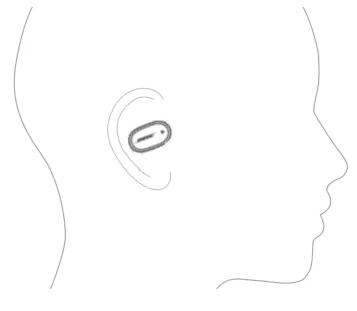
Make sure the earbuds are oriented correctly for the best microphone performance.
Proper fit is important for product comfort and performance. If the earbuds do not fit properly or the orientation is incorrect it could lead to poor audio or mic performance.
Earbud Orientation
| Good - Logo pointed toward mouth/chin | |
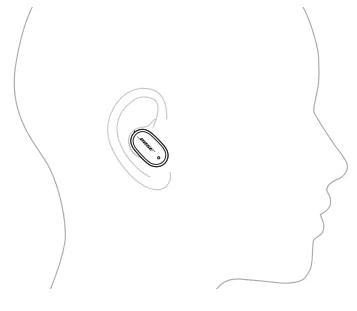
| Okay - More vertical ... logo pointed down toward lower neck | |
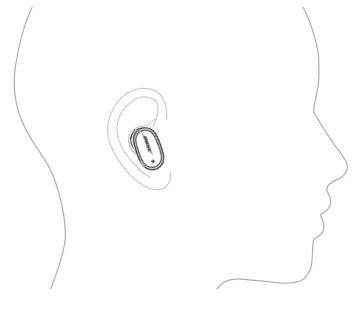
| Poor - More horizontal ... logo pointed toward bridge of nose | |
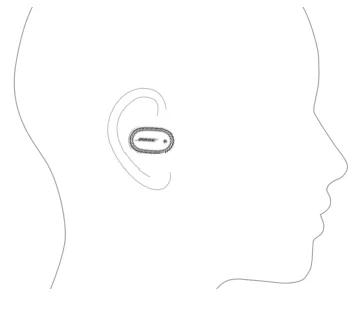
| Bad - More than horizontal ... logo pointed toward eyes |
Be sure the openings on your headphones are clean and free of debris.
Move to a less windy environment
Place another phone call.
Be sure you're wearing the earbuds correctly.
If you're experiencing intermittent audio during phone calls, check your cellular reception.
This issue may be caused by a weak connection to the cellular network. Enabling Wi-Fi calling in your phone's settings while connected to your home network can help, or you can try the call again once the reception improves.
Try disconnecting other nearby wireless devices that might interfere with Bluetooth® signal.
Common examples include:-
- 2.4 GHz router
- cordless phone
- wireless speaker adapters
- home security motion sensors
- fluorescent lights
- microwaves
- wireless mice and keyboards
Try connecting a different Bluetooth device.
Reset your product.
Much like rebooting a smartphone, your product might need to be reset on occasion to correct minor issues. For more information, see Resetting your product.
