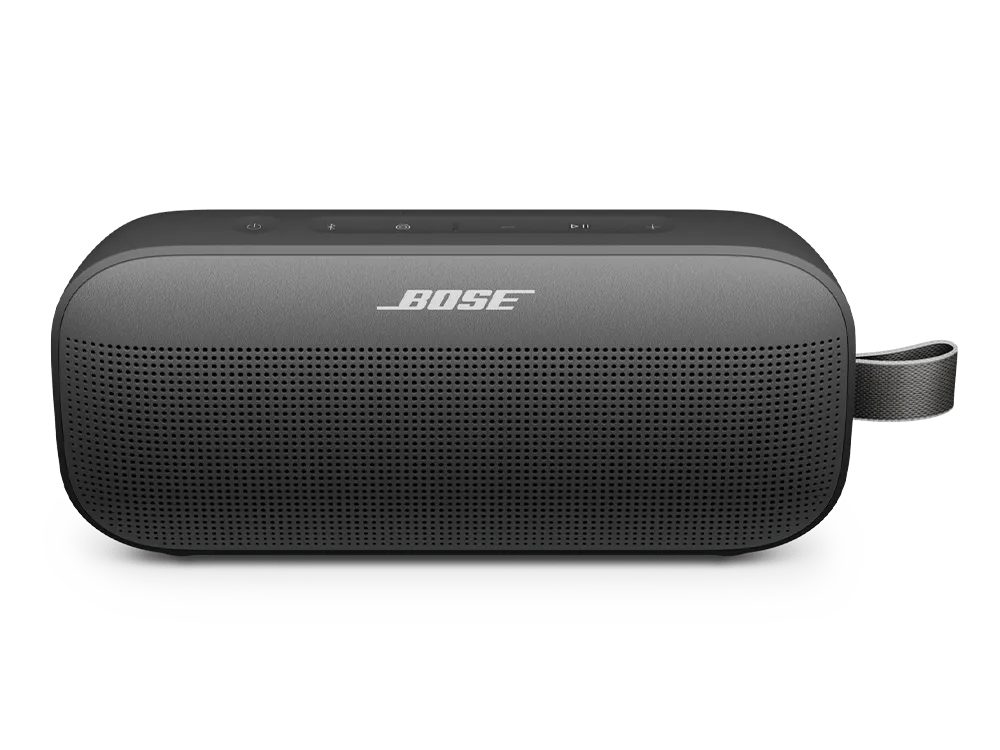
Check the volume level of the Bose system.
Be sure the system volume is not turned down. Using the volume control, gradually increase the volume level.
Turn up the volume of the connected device.
Set the device volume to 90–100% to send a strong signal to your product. Then, use your product to adjust the volume level.
Reboot the Bluetooth device
Electronics might need to be reset on occasion to correct minor issues. This is typically done by turning the device off, then powering it on again.
Be sure your product is within 33 feet (10 meters) of the Bluetooth device.
This range can be reduced by obstacles (e.g. walls, doors, appliances, wireless devices, etc.). Try moving the device and product closer together.
If adding a device to Windows, be sure to connect to the Bluetooth® device with the headset or speaker icon.
In Windows, your product shows up twice in the Bluetooth device list: once with a device icon and
LE before the product name and
once with a headphones or speaker icon. Select the option with the headphones or speaker icon. Do not select the
LE listing.
Tip: If you already paired to the device icon, just connect your product again and choose the listing with the headphones or speaker icon. For more info, see
Connecting a Bluetooth® device.
![\"Windows]()
Update your system software.
Try a different app.
If the issue only occurs with a particular app, it is likely related to the app or app settings.
Some third-party phone/video call apps are not supported with Bluetooth® speakers.
Bluetooth speakers support Hands-Free Profile (HFP) but not Headset Profile (HSP) for Bluetooth profiles. Many apps – including Skype, WhatsApp and Facebook Messenger and others – use the HSP profile. Because of this, calls made using apps without HFP support will not be heard or controlled through the Bluetooth speaker.
Determine if the issue occurs with another Bluetooth® device.
The source device currently paired to your product may be causing the issue. Try pairing a different Bluetooth source to see if the issue is isolated to that device.
If using an Amazon Echo Dot, clear the Dot memory of other Bluetooth® devices.
If the Dot disconnects from your product, it and your product both look for previously-connected devices to reconnect. This can result in the two products not finding each other. To prevent this, remove all devices except your Bose product from the paired device memory of the Dot: In the Amazon Alexa app, go to Settings > Alexa device > Bluetooth, then select and Forget other devices. Now, if the Dot disconnects, it will only try to reconnect your Bose product.
Clear your product's memory of previously paired Bluetooth® devices, then reconnect.
Try connecting a different audio device.
If available, connect another audio device using the same cables and connections to determine if the issue is related to the first device or its settings.
Reset your product.
Much like rebooting a smartphone, your product might need to be reset on occasion to correct minor issues. For more information, see
Resetting your product.