Was this helpful?
Using multiple Bluetooth connections | QuietComfort® 35 wireless headphones
Managing multiple connections
Switching between connected devices
To play music from a device in the headphone memory that is not currently connected:
- Slide the power switch all the way to the right to the Bluetooth® symbol and release to hear which device(s) are currently connected.
- Within three seconds, slide the power switch all the way to the right to the Bluetooth symbol and release again to connect to the next paired device.
- Repeat step 2 until you hear the correct device name.
Connecting multiple Bluetooth® devices using the Bose Connect app:
- Open the app and wait while it searches for available Bose Bluetooth devices
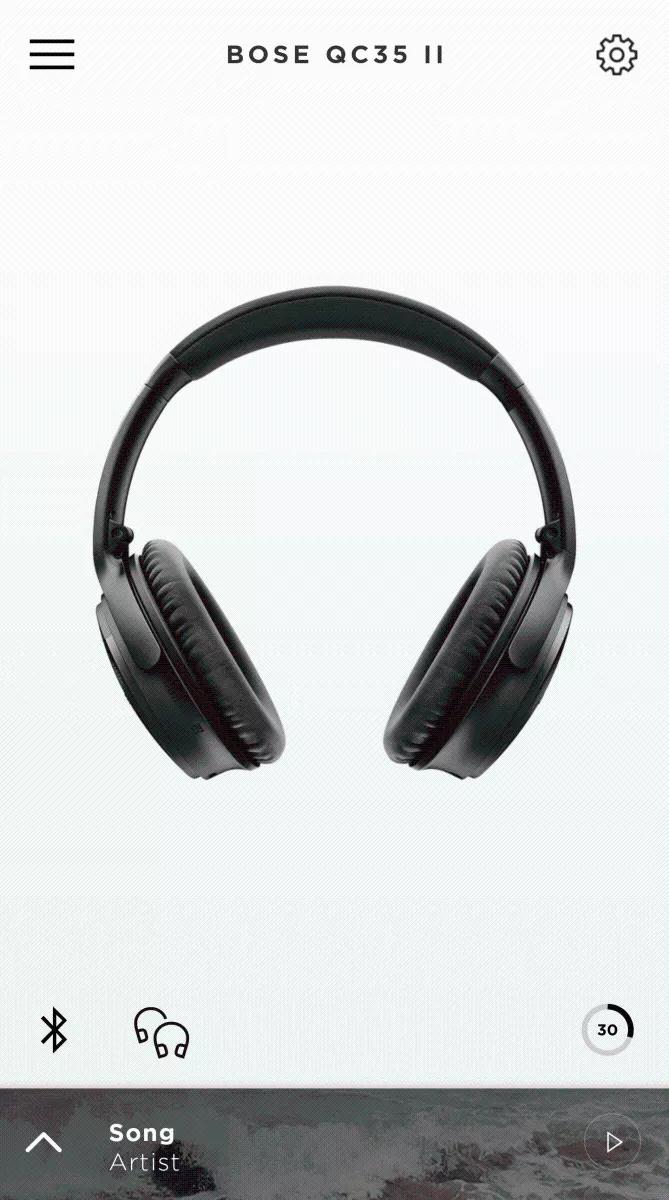
- Below the image of your product, tap the Bluetooth icon
Tip: If you have more than one Bose Bluetooth product, swipe left or right to find it, then tap the Bluetooth icon
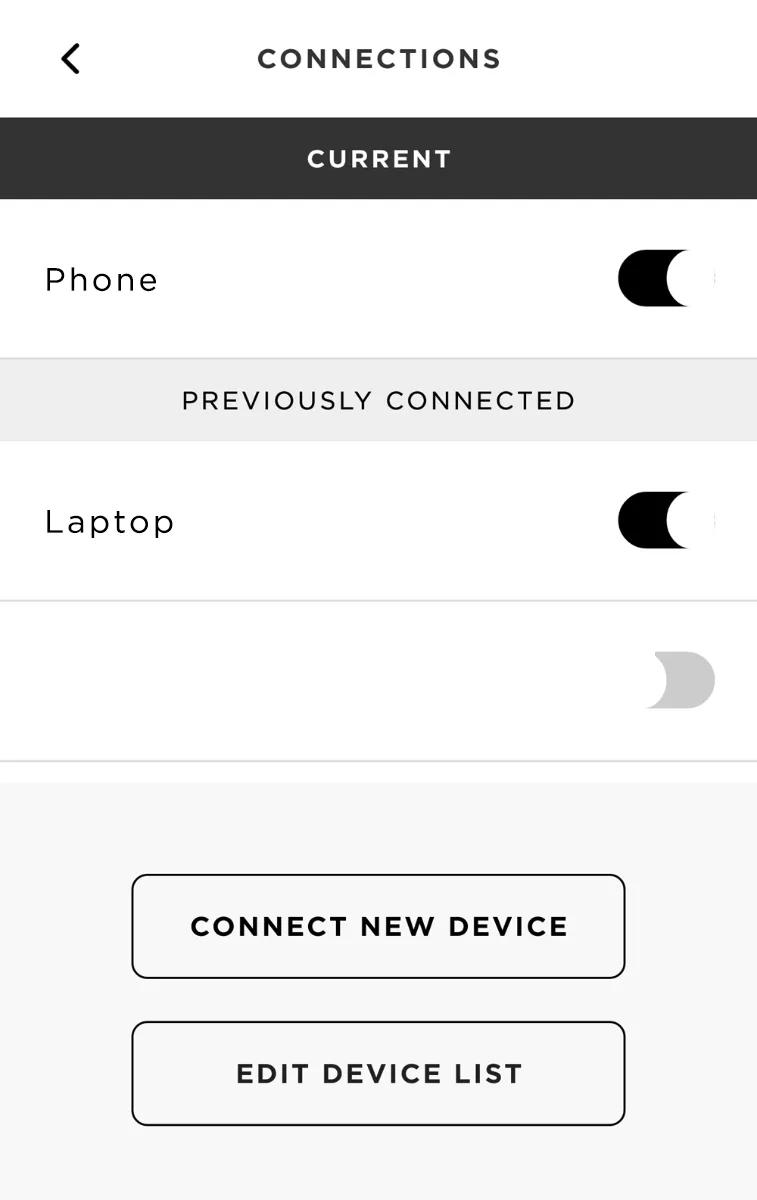
- Connect previously connected devices using the toggle next to the device name, or tap CONNECT NEW DEVICE to connect a new device. For more info, see Connecting a Bluetooth® device
Connected devices show under CURRENT
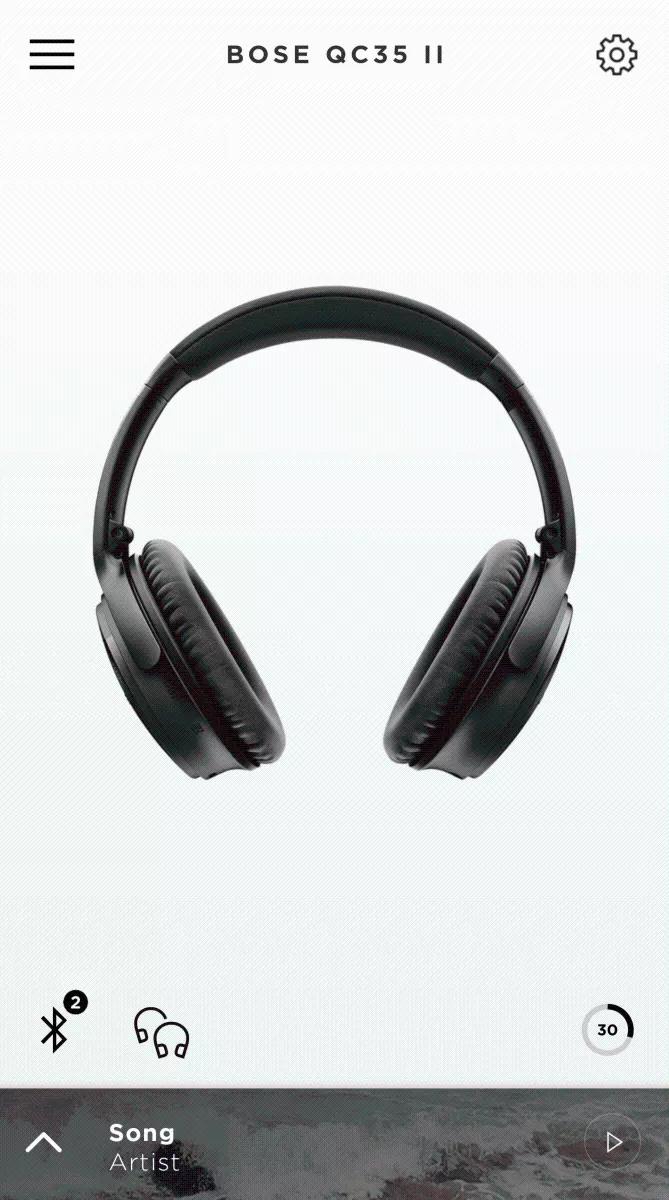
On the product screen, a 2 appears next to the Bluetooth icon when two devices are connected.
To connect a Bluetooth® device using the Bose Connect app:
- On the device you want to connect, turn on Bluetooth
- Open the app and wait while it searches for available Bose Bluetooth devices
- Tap the Bluetooth icon to view your Bluetooth connections
Tip: If you have more than one Bose Bluetooth product, swipe left or right to find it, then tap the Bluetooth icon
- Connect a device:
- Use the toggles to connect or disconnect a device you have previously connected
- To connect a new device, tap CONNECT NEW DEVICE: The app instructs you to open the Bluetooth settings of the device you want to connect and select the Bose product