Bose uses first and third-party cookies and similar technologies to better
understand your use of our website, personalize content, provide you with
social media features and tailored advertisements based on your browsing
activities.
Click here for more information.
By clicking "Accept", you agree to our use of the above cookies. You can
reject all cookies or some cookies only by clicking on "Reject/Manage cookie
settings."
Bose uses first and third-party cookies on its website, and to provide
personalized content, tailored advertisements, and analytics.
Click here for more information.
By clicking "Accept", you agree. You can reject all/some cookies by clicking
"Reject/Manage cookies."
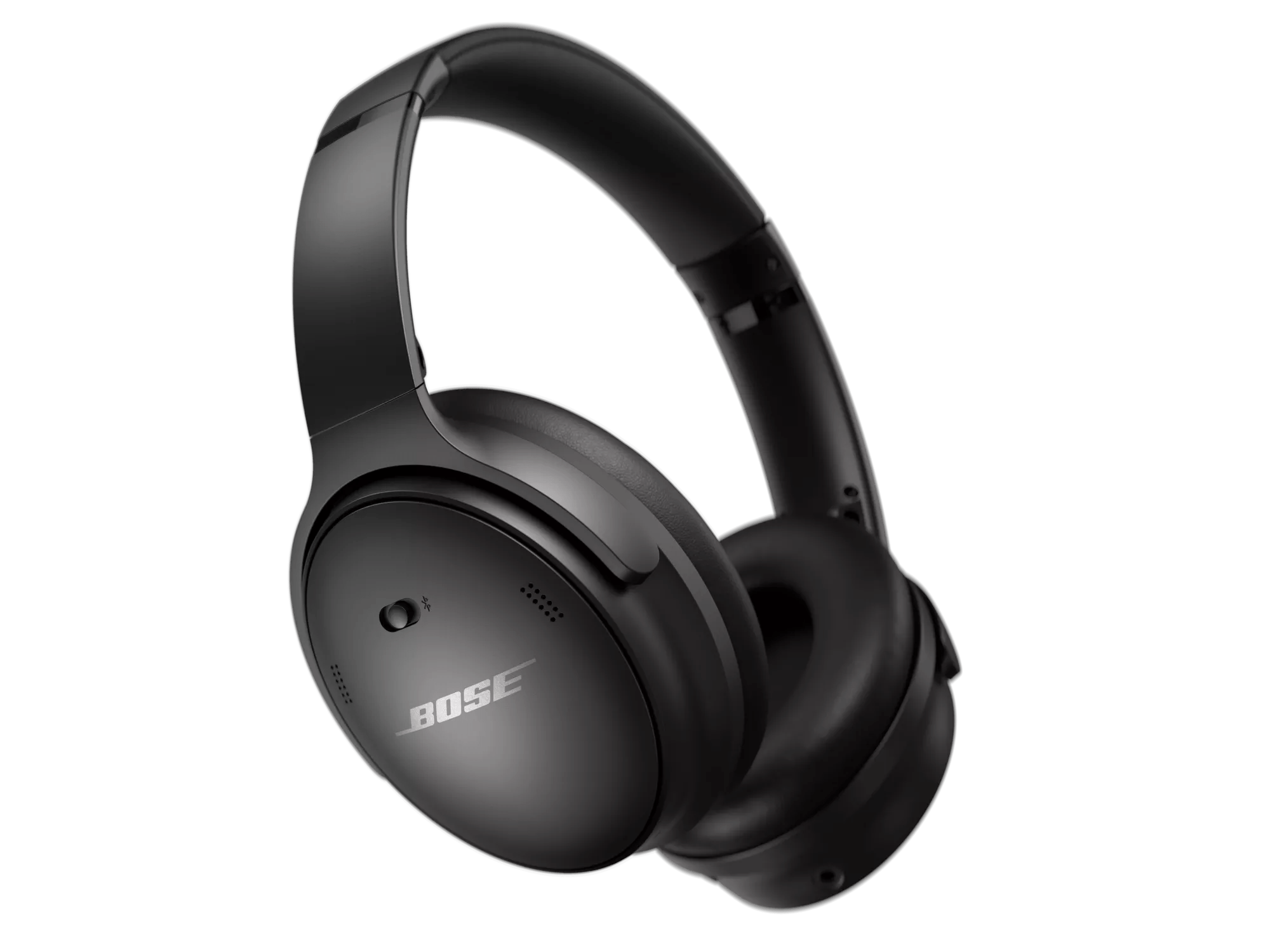


 lets you set up and control your headphones from a mobile device, choose a voice prompt language, adjust noise cancelling levels, and more. For more info, see Downloading the Bose app.