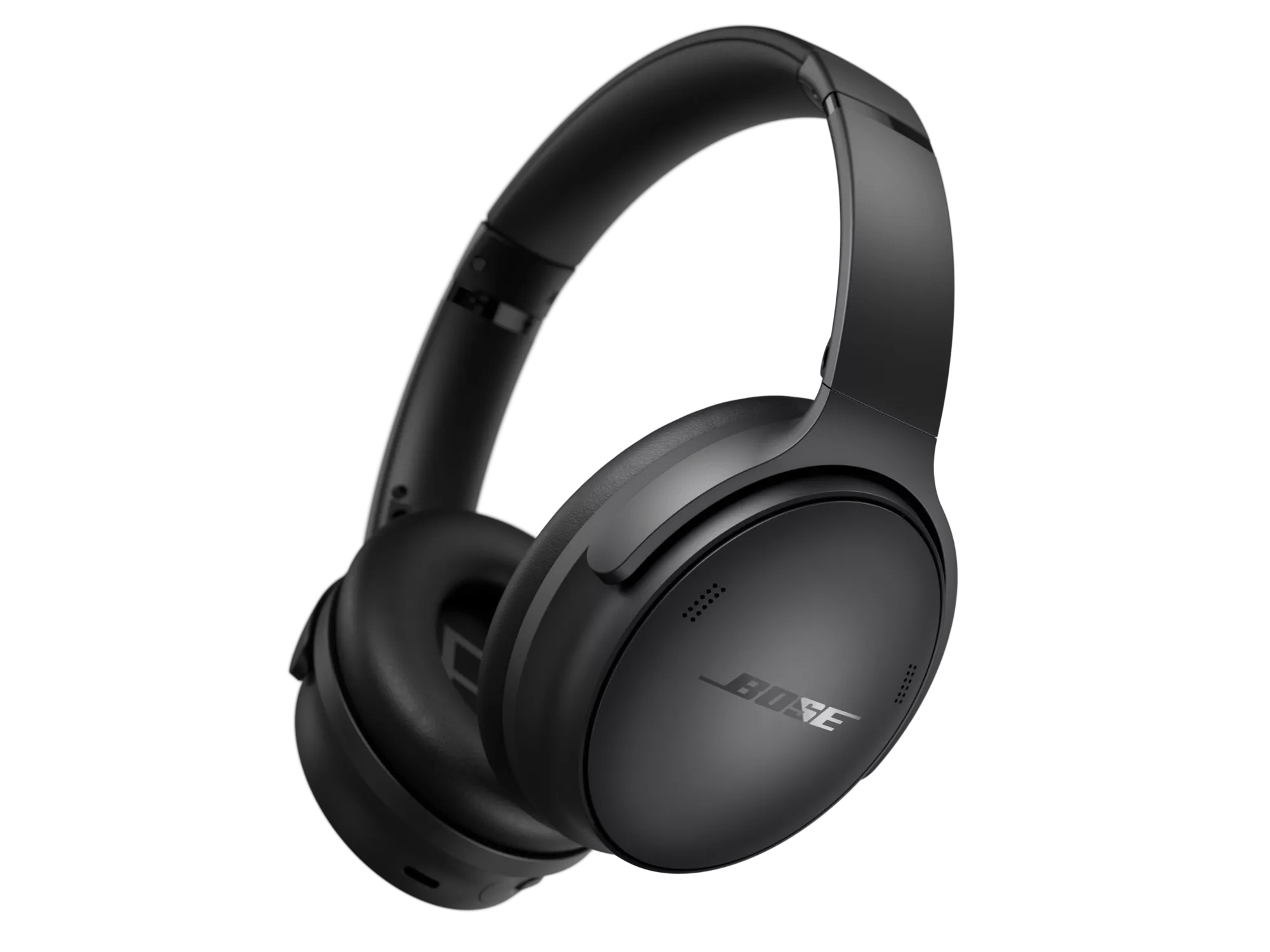
If in wired mode, press the Volume + button on the headset
When using the audio cable with this product, the volume defaults to a low level. To resolve this, press the Volume + button on the headphones to increase the volume.
Note: If the headphones are powered off or the battery is depleted, the headphone's volume control is disabled. Use the connected device's volume instead.
Determine if the problem is specifically related to bass performance.
Check the volume level on the source.
Its possible the volume is too low or muted. Increase the volume gradually
Reset your product.
Much like rebooting a smartphone, your product might need to be reset on occasion to correct minor issues. For more information, see Resetting your product.
Try a different app.
If the issue only occurs with a particular app, it is likely related to the app or app settings.
Try playing different types of media.
Different media types might produce different quality sound. For example, Podcasts, music stored locally on your phone, MP3s, streaming music services (Spotify, Pandora), videos on your device or stored in the cloud, etc. can all vary in quality. Try different media to determine if the issue is specific to certain media.
If connected, bypass any adapters or extension cables.
If your product connects to the device using an extension cable or adapter, disconnect the extension cable or adapter to determine if the issue is related to it.
Check the condition of the headphone cable.
If the plug or any part of the cable is damaged, replace the headphone cable.
Be sure the headphone openings are clean and free of debris.
Check for blockages in the headphone mesh grille and headphone opening. Excessive debris can result in low audio, poor sound quality or missing audio channels.
Plug in a different pair of headphones.
Connect another pair of headphones to the audio device to determine if the issue is with the device or its settings.
Check for and install any available product updates.