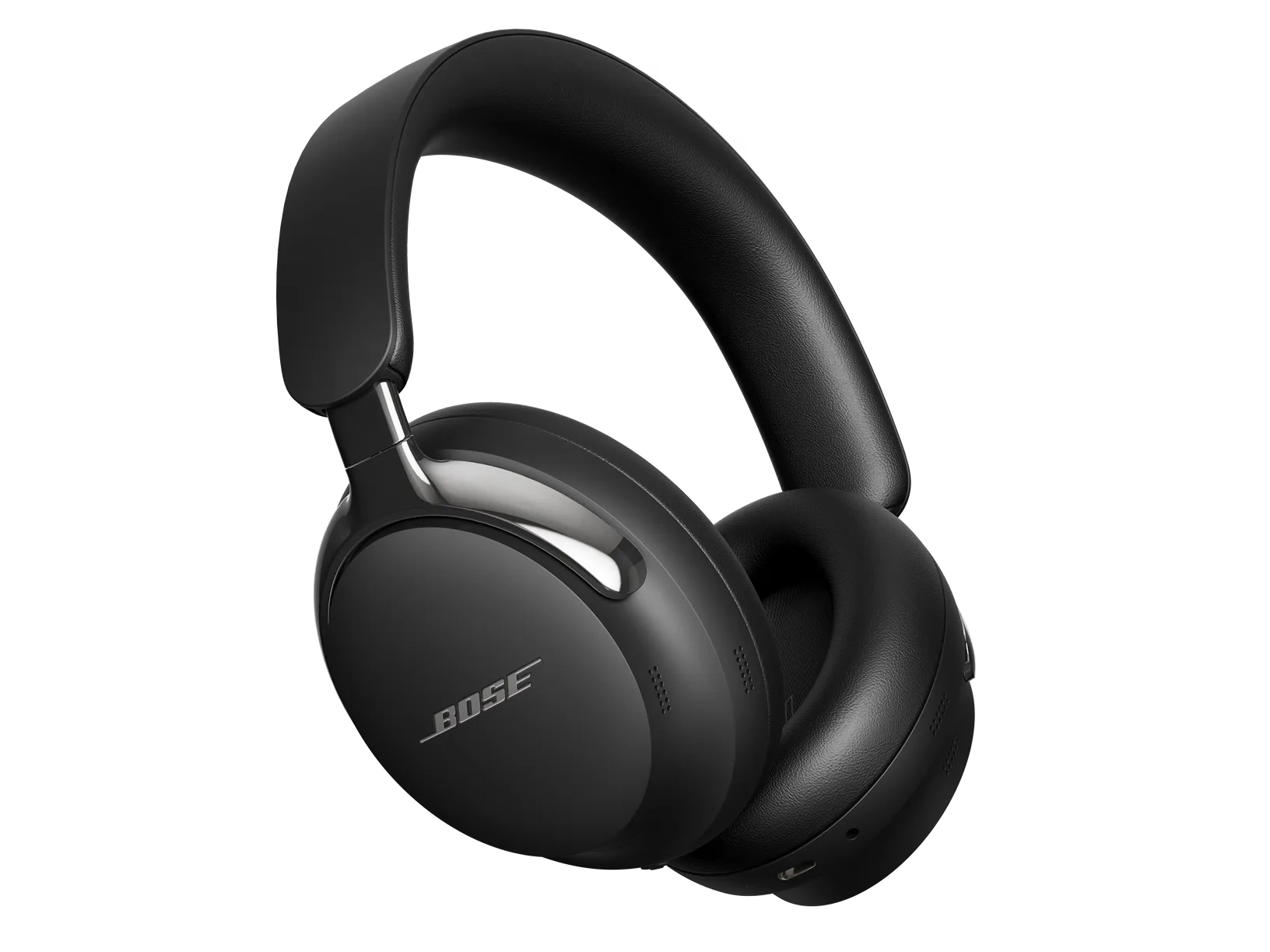
Reboot your headphones.
This reset will not erase your product settings.
- If the USB charging cable or audio cable is connected to your headphones, disconnect it.
- Connect a USB charging cable and charger to a power outlet. You can also connect the USB cable to a USB port on a computer that is powered on.
Note: Do not connect your headphones to the USB cable yet. - On your headphones, press and hold the Power/Bluetooth® button.
- While continuing to hold the button, connect the USB cable to the left earcup. The Power light on your headphones will quickly blink twice.
- Once connected, wait two seconds and then release the Power/Bluetooth button.
Tip: If your headphones don't respond after this, reset them a second time.
Be sure you are using the Bose app.
There are several Bose apps designed for different products. Your product works with the Bose app

. For more info, see
Downloading the Bose app.
In the Bose app, swipe down on the "My Bose" screen to refresh the device list.
If you're trying to connect in the Music app, and your product is not showing or connecting on the "My Bose" screen, you can pull the screen down to refresh the device list.
Check if Microsoft Teams is running on a nearby PC to which you’ve previously paired your headphones or earbuds.
If so, the PC could take control of the Bluetooth LE (Low Energy) signal your product uses to enable discovery by the Bose app. To resolve the issue, quit Microsoft Teams on the PC and remove any "LE-Bose" listings in the Bluetooth menu of your PC. The non-LE pairing can remain as this will allow for quick reconnection of your headphones or earbuds to your PC.
Reboot the device running the Bose app.
Electronics might need to be rebooted from time to time to correct minor issues. This is typically done by powering off the device completely and then powering it back on again.
Close and re-open the Bose app.
On an iOS device:- Swipe up from the bottom center of the screen to view active apps.
- Swipe left or right to find the Bose app.
- Swipe up on the app to close it.
On an Android device:- Locate the Bose app then press and hold on the app icon.
- Select App Info (or the circled "i" icon) from the pop-up that appears.
- On the App Info screen, select Force Stop.
After the Bose app has been closed, tap on the app icon to re-open it.
In the Bose app, sign out of your Bose account and then sign back in.
- To sign out, tap the products icon
 in upper-left corner.
 - Tap the My Account icon
 in the upper-right corner.
 - Scroll down to the bottom of the screen and tap Sign Out.
Once you sign out, sign back in by clicking on the Sign In / Sign Up button.
If using iOS 13 or newer, be sure Bluetooth® permissions are enabled for the Bose app.
When you first install the Bose app on an iPhone or iPad with iOS version 13 or newer, you will be prompted to allow Bluetooth permissions for the app. You must allow this for the app to work properly. To check that Bluetooth is allowed for the app, do one of the following on your iOS device:
- Go to Settings > Privacy > Bluetooth and enable Bluetooth permissions for the Bose app
- Go to Settings, then scroll down and select the Bose app. Under Allow Bose To Access, enable Bluetooth
In your mobile device settings, be sure location and network permissions are turned on for the app.
Location permissions are used by the Bose app to detect and control your product. If location settings are disabled for the app, it will not work properly.
- For iOS devices:
- Go to Settings > Privacy > Local Network and be sure it is not disabled for the Bose app.
- Go to Settings > Privacy > Location Services and be sure it is not disabled for the Bose app.
- For Android devices, touch and hold the app icon, then tap App Info from the pop-up that appears. On the App Info screen, tap Permissions and be sure Your location is enabled.
Check for and install any available product updates.
In the Bose app, remove your product and then re-add it.
Uninstall and reinstall the Bose app.
In case an issue occurred with the app, uninstall it from your device, download and reinstall it, then try again.
Try the app on a different mobile device.
If available, download and install the Bose app on another device to determine if the issue is related to the first device or its settings.