Was this helpful?


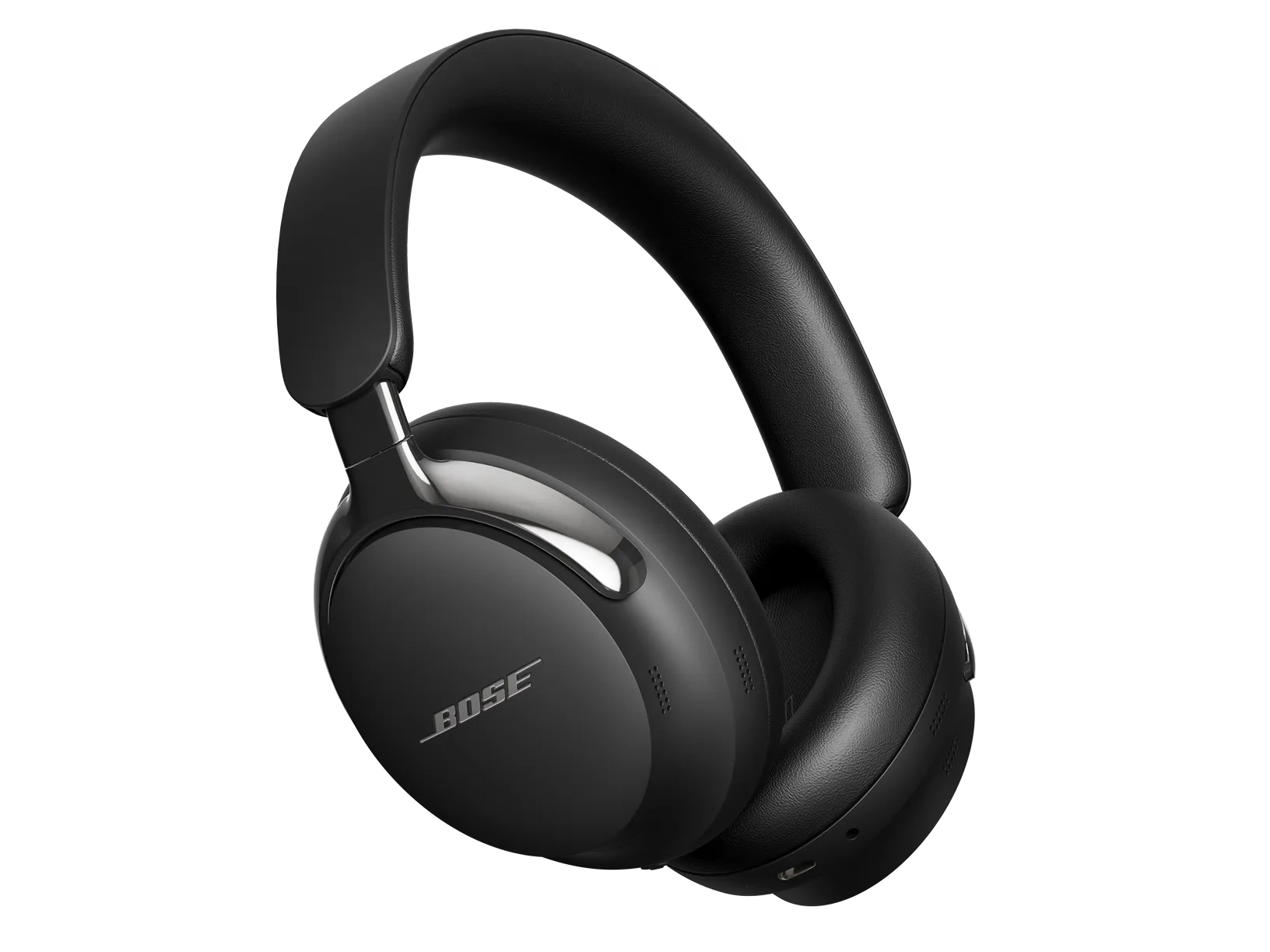
Modes are audio settings that allow you to customize your listening experience. Most newer Bose earbuds and headphones have a few preset modes that can be changed using the controls on the product, however you can create your own custom modes using the Bose App.
| Mode | Description |
|---|---|
| Quiet | Full noise cancellation with Bose-optimized stereo audio. Allows you to block out distractions using the highest level of noise cancellation. |
| Aware | Full transparency with Bose-optimized stereo audio. Allows you to hear your surroundings while enjoying your audio in stereo. |
| Immersion | Full noise cancellation with immersive audio set to Motion. Allows you to block out distractions and immerse yourself in lifelike audio. |
| Cinema | Full noise cancellation with Immersive Audio set to Still. Allows you to experience your video content in a movie-like way by spatializing your audio and balancing background sounds and sound effects. |
NOTE: By default, the headphones power on in Quiet mode. You can set the headphones to remember your last mode by clicking the gear icon in the upper right corner of the Modes menu and toggling on Remember My Mode
On the right earcup, press and hold the multi-function button on the right earcup. The voice prompt will announce the mode change.
If you continue to hold the multi-function button it will cycle through all of the available modes. The headphones will only cycle through modes if they have been favorited in the Bose app.
On the product page of the Bose app*, select the Modes option. Select any of the available modes in the menu. That option will turn white indicating it has been selected.
*Please note: your headphones or earbuds must be powered on and connected to the Bose app to access the product page.
It is available for most Bose noise-cancelling headphones and earbuds. It will automatically adjust the level of noise cancellation based on the volume of noise around you so that you can continue to enjoy what you are listening too. It is only available in Aware mode.
To turn ActiveSense™ on or off:
Immersive audio takes what you’re hearing out of your headphones and places it in front of you—like you’re always in the sound’s sweet spot. It feels like the audio is coming from outside the headphones, resulting in a more life-like experience. Immersive audio works on any streaming content from any source, taking your audio to new heights with better sound clarity and richer sound quality.
| Setting | Description | When to use |
|---|---|---|
| Off | Traditional stereo audio that sounds like it's coming from your headphones. | Use when you want a traditional listening experience or want to conserve battery life. |
| Still | Audio sounds like it's coming from two stereo speakers in front of you that remain in position when you move your head. A few seconds after you stop moving your head, the speakers re-center to where you are facing. | Use for the most realistic and powerful experience. Best used when you are stationary. |
| Motion | Audio sounds like it's coming from two stereo speakers in front of you that follow your head movements. To access this option, use the Bose app and tap Modes on the main screen. | Use for the more consistent experience. Best used when you're doing activities that require you to frequently turn your head or look down. |

