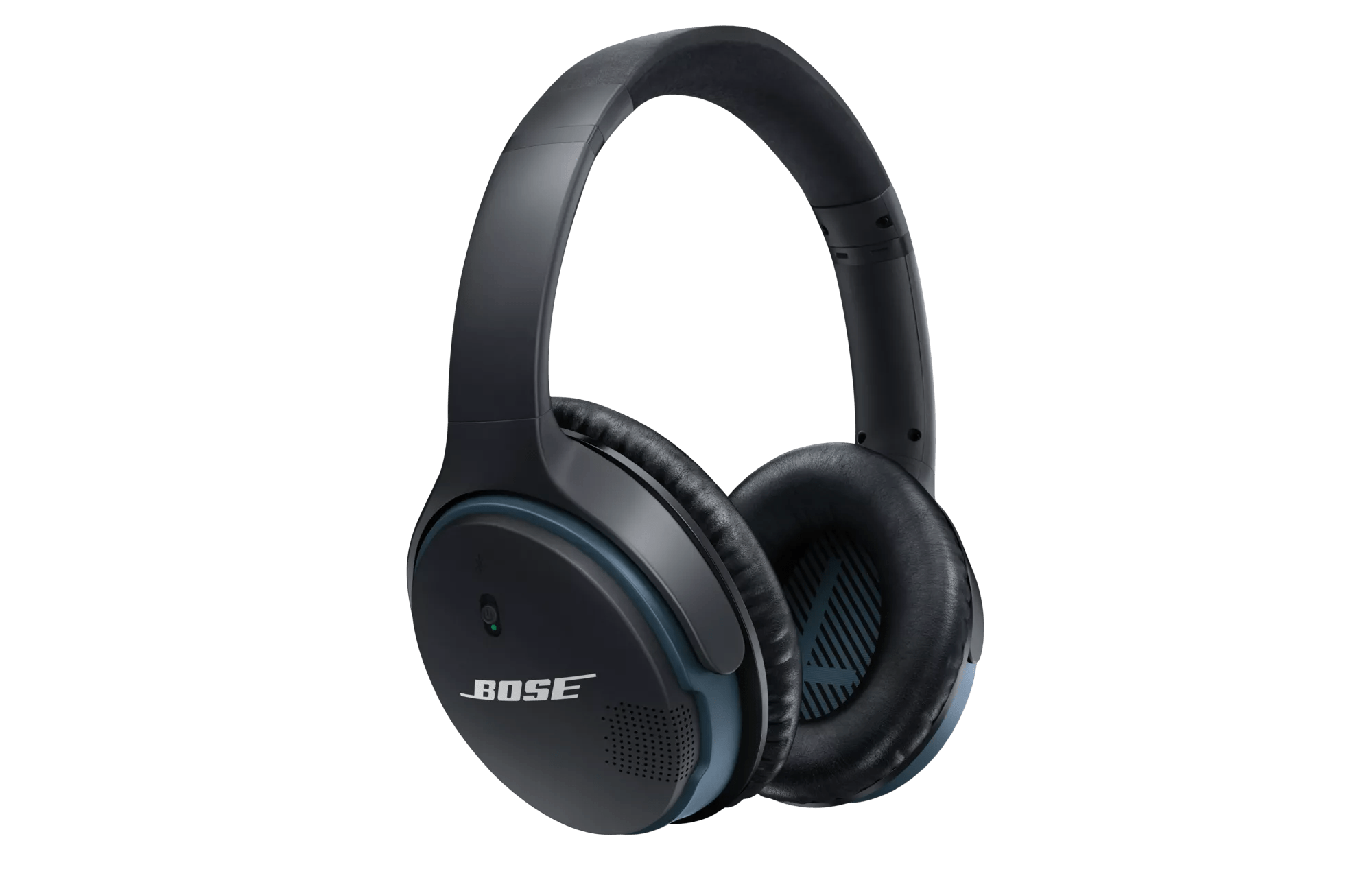
App controls do not affect connected product | SoundLink® around-ear wireless headphones II
Close and re-open the Bose app.
On iOS devices:
- Depending on your iOS device, either double-tap the Home button or swipe up from the bottom center of the screen to view active apps
- Swipe left or right to find the app you want to close
- Swipe up on the app to close it.
- On the home screen, press and hold the app icon
- Tap App info from the pop-up that appears
- On the App Info screen, tap Force Stop.
Clear the memory in your product of previously connected Bluetooth® devices.
On the Bluetooth device, remove all entries of your Bose product from the Bluetooth menu. Then, try connecting again.
In the Bluetooth menu of the Bluetooth device, you'll find a list of Bluetooth products that have been previously connected. Your Bose product might show up one or more times in the list (i.e. any Bose entries that begin with "LE-"). Select each entry for your product and remove it by selecting Forget, Unpair, Delete or something similar. After, try connecting again. For more info, see Connecting a Bluetooth device.

Reboot the device running the Bose app.
Be sure location permissions are not blocked for the app in your mobile device settings.
- For iOS devices, go to Settings > Privacy > Location Services and check that it is not disabled for the Bose app
- For Android devices, go to Settings > Applications and select the Bose app. Tap Permissions and check that Location is not disabled. (Note: The location of these settings might vary by device)