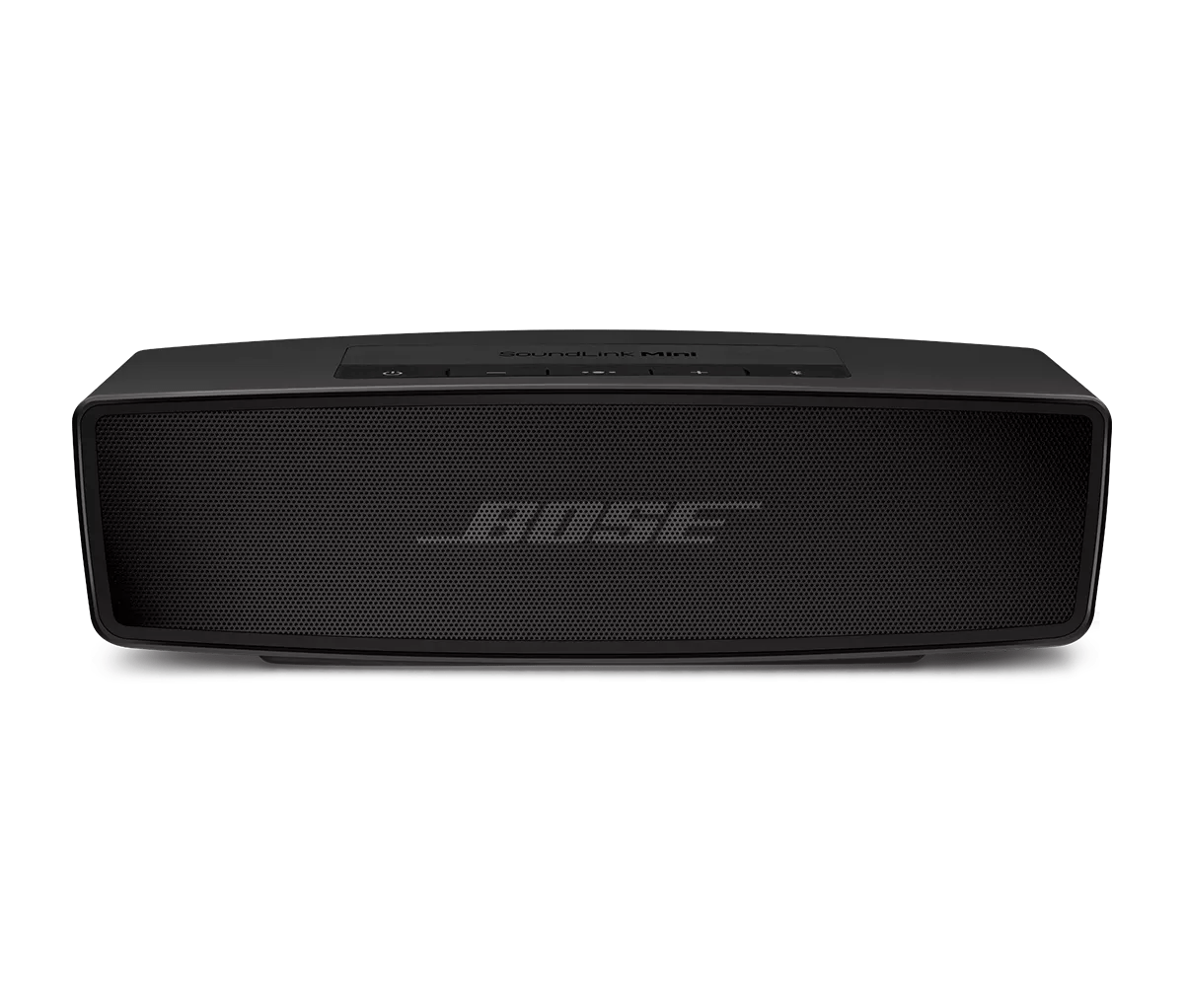
Clear your Bose product memory of previously-connected Bluetooth® devices.
On the Bluetooth device, remove all entries of your Bose product from the Bluetooth menu. Then, try connecting again.
In the Bluetooth menu of the Bluetooth device, you'll find a list of Bluetooth products that have been previously connected. Your Bose product might show up one or more times in the list (i.e. any Bose entries that begin with "LE-"). Select each entry for your product and remove it by selecting Forget, Unpair, Delete or something similar. After, try connecting again. For more info, see Connecting a Bluetooth device.
Be sure your product is within 33 feet (10 meters) of the Bluetooth device.
This range can be reduced by obstacles (e.g. walls, doors, appliances, wireless devices, etc.). Try moving the device and product closer together.
If you're experiencing intermittent audio during phone calls, check your cellular reception.
This issue may be caused by a weak connection to the cellular network. Enabling Wi-Fi calling in your phone's settings while connected to your home network can help, or you can try the call again once the reception improves.
Try playing different types of media.
Different media types might produce different quality sound. For example, Podcasts, music stored locally on your phone, MP3s, streaming music services (Spotify, Pandora), videos on your device or stored in the cloud, etc. can all vary in quality. Try different media to determine if the issue is specific to certain media.
Try a different app.
If the issue only occurs with a particular app, it is likely related to the app or app settings.
Reset your product.
Much like rebooting a smartphone, your product might need to be reset on occasion to correct minor issues. For more information, see Resetting your product.
Try connecting a different audio device.
If available, connect another audio device using the same cables and connections to determine if the issue is related to the first device or its settings.
Replace the cables used to connect your product
Try replacing the cables that connect your product. If no issue is heard with new cables, the first set of cables is the issue.