Clear any error states
Your Bluetooth speaker may report an error if the battery reaches a deeply discharged state or experiences an error related to the charging source. This error can only be cleared connecting the product to a computer, logging into btu.bose.com and completing the following steps. This will only clear any system errors. It will not update your products software. This can be successful even if your product shows no signs of power.
- Visit btu.bose.com and download the product updater if you have not already.
- Connect your product to the computer using a USB cable.
- On your computer keyboard, press "o", "p", "t", up arrow, down arrow. The following screen will appear:
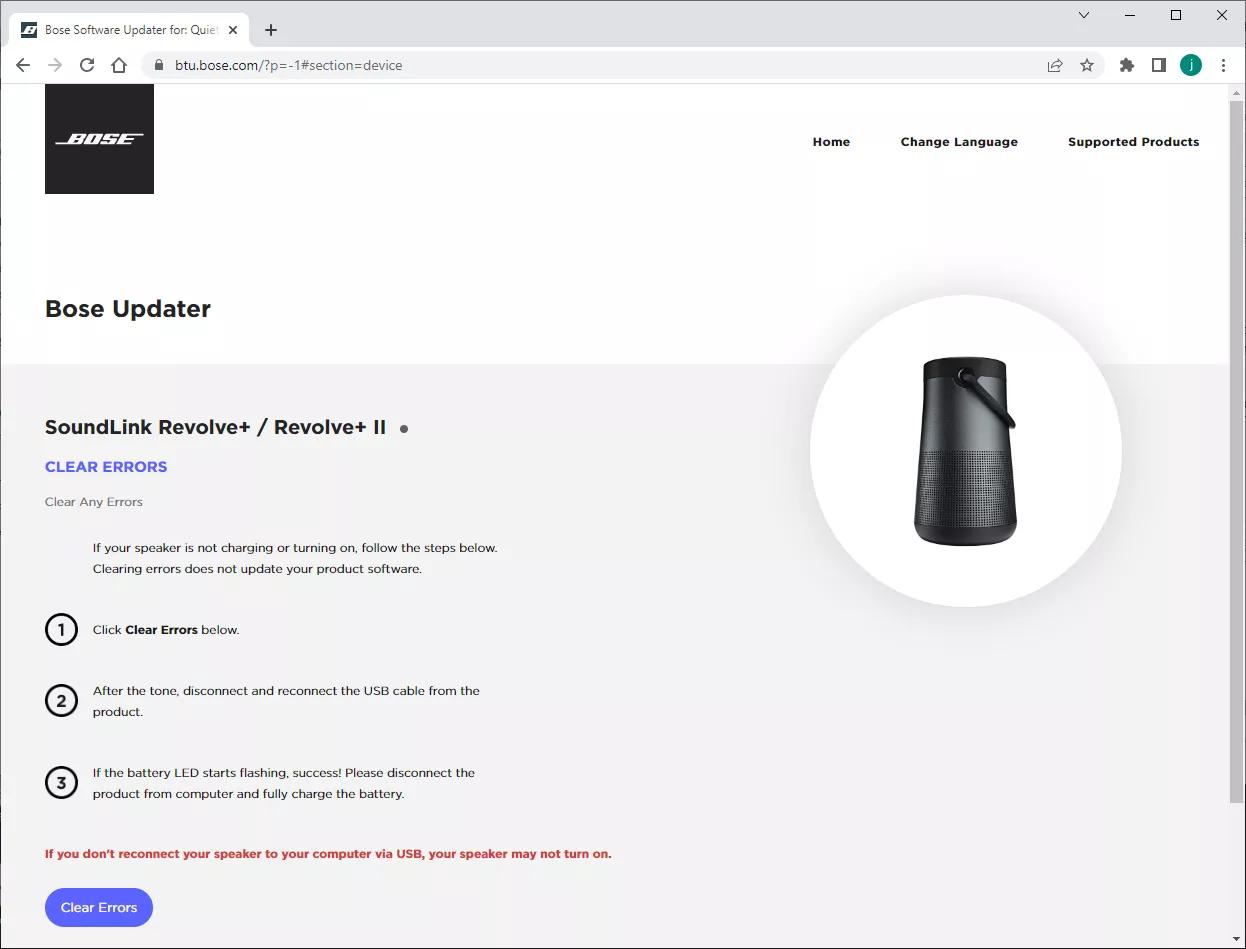
- Follow the on screen instructions to clear any potential errors.
Reset your product.
Much like rebooting a smartphone, your product might need to be reset on occasion to correct minor issues. For more information, see Resetting your product.
Check the power supply and cable
Use a Compatible Power Supply
Using the original Bose power supply is recommended to ensure your speaker receives adequate power. In some cases—such as after a long period of non‑use—the speaker may enter protection mode and require the full 5 V DC, 1.6 A output to power on. Verify that the power supply you are using meets these requirements.
Verify USB Charger Power Rating
Check the text on the USB charger for its amp (A) or milliamp (mA) rating, as this varies between chargers, including those supplied with different Bose products. Chargers with higher amp ratings (up to the product’s maximum) will recharge the product more quickly. If the charger’s output is too low, the product may recharge slowly or not at all.
Refer to the product specifications or owner’s guide for the required power rating. Some products need a minimum of 1 amp to recharge, while many computer USB ports provide only 0.5 amps, which may be insufficient.
Always use a safety‑agency‑approved power supply that meets local regulatory requirements (such as UL, CSA, VDE, or CCC).
Check the USB Charging Cable
Disconnect and reconnect the USB charging cable at both ends, making sure it is firmly seated. After reconnecting, allow at least one hour for the speaker to charge.
If the issue continues, try a different USB cable to determine whether the original cable is faulty.
Reseat the USB charging cable on both ends
Disconnect and reconnect the USB cable at both ends, ensuring it is firmly connected. Allow at least an hour for the speaker to charge after the connections have been reestablished.
Bypass the charging cradle.
Disconnect the charging cable from the charging cradle then connect the cable directly to the speaker. If the speaker begins charging, there may be an issue with the cradle.
Disconnect the charging cradle to use USB audio or charging.
When your product is connected to the charging cradle, USB audio and charging do not work.
Replace the power supply.
In case there is an issue with the power supply, try replacing it. If you have a safe way to test the power supply and are comfortable doing so, you can check if the power supply is supplying the voltage shown on the power supply label. It is not, replace it..
Check for and install any available product updates.
Regardless of the issue you are experiencing with your product, try updating it. Visit
btu.Bose.com and follow the instructions to ensure your product has the latest features and enhancements.
Play the speaker at a moderate volume for 10 minutes.
Make sure to play the speaker at a moderate volume (around 50%) for at least 10 minutes while on battery power. Then try charging the unit again.