
Setting up your product | Bose Smart Soundbar
bose-smart-soundbar
Bose Smart SoundbarSold from 2024

Setting up your product | Bose Smart Soundbar

Before you begin

  • Install the Bose app icon on your Apple or Android mobile device.

  • Turn on Bluetooth® on your mobile device
  • If you've already connect the soundbar to power, the light bar on the front should be glowing amber. If it isn't, you will need to put the soundbar into Setup mode.

Frequently Asked Questions

undefined

Get the Bose app.

The Bose app is available for iOS and Android devices.

The Bose app works with the following Bose products:

Bose Frames Soprano

Bose Frames Tempo

Bose Frames Tenor

Bose Music Amplifier

Bose Noise Cancelling Headphones 700 UC

Bose Noise Cancelling Headphones 700

Bose Portable Smart Speaker (Portable Home Speaker)

Bose S1 Pro+ Wireless PA System

Bose Smart Soundbar 300

Bose Smart Soundbar 600

Bose Smart Soundbar 700

Bose Smart Soundbar 900

Bose Smart Soundbar Ultra

Bose Smart Soundbar

Bose Smart Speaker 500 (Home Speaker 500)

Bose Soundbar 500

Bose Soundbar 550

Bose Soundbar System Bundle

Bose Sport Earbuds

Bose Sport Open Earbuds (2021)

Bose Sport Open Earbuds

Bose Ultra Open Earbuds

Bose Ultra Open Earbuds (2nd Gen)

Home Speaker 300

Home Speaker 450

L1 Pro16 Portable Line Array System

L1 Pro32 Portable Line Array System

L1 Pro8 Portable Line Array System

Lifestyle Ultra Soundbar

Lifestyle Ultra Speaker

QuietComfort 45 Headphones (QuietComfort SE Headphones)

QuietComfort Earbuds II

QuietComfort Earbuds

QuietComfort Headphones (2nd Gen)

QuietComfort Headphones

QuietComfort SE Headphones

QuietComfort Ultra Earbuds (2nd Gen)

QuietComfort Ultra Earbuds

QuietComfort Ultra Headphones (2nd Gen)

QuietComfort Ultra Headphones

SoundLink Flex (2nd Gen)

SoundLink Max

SoundLink Micro (2nd Gen)

SoundLink Plus
undefined

To enter Setup mode:

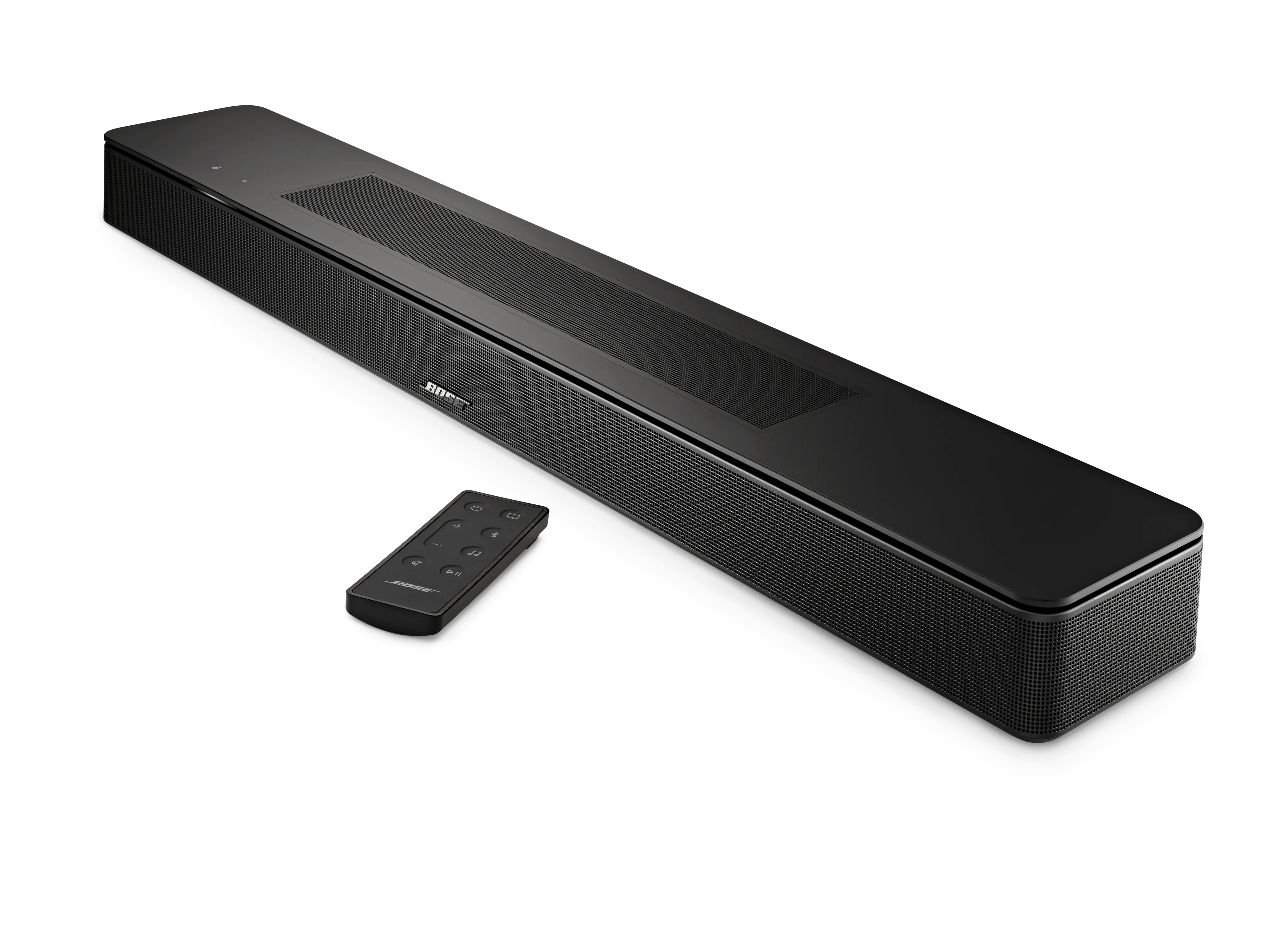
  1. On the remote control, simultaneously press and hold the Mute and Bose Music buttons for five seconds until the light bar on the soundbar glows amber.
  2. For next steps, refer to the Bose app or back to the previous help article.
undefined

undefined

undefined

Set up the Smart Soundbar.

  1. If the soundbar is not connected to power, connect a power cord from the soundbar to a power outlet. The light bar will blink for approximately 30 seconds as it powers up, then glow amber
  2. On your mobile device, open the Bose app. Signing in (see above) 
  3. If prompted to allow Location Service, Local Access Network, or Bluetooth® permissions for the app, allow them. These functions are used so the app can detect and control your product. If you do not allow them, the app will not find your product
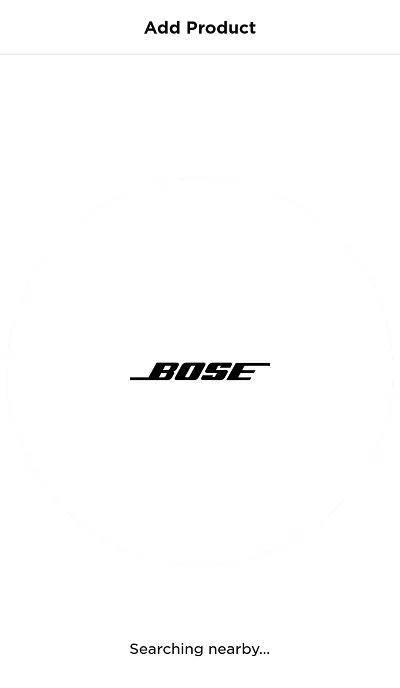
  4. The app will begin to search for products (in Setup mode) compatible with the Bose app


    searching nearby

  • If product image shown is not your soundbar, swipe left to see other products, then tap Add.
    If the Set Up New Product screen does not appear, tap the My Bose icon icon in upper-left corner, then tap the + to add a product
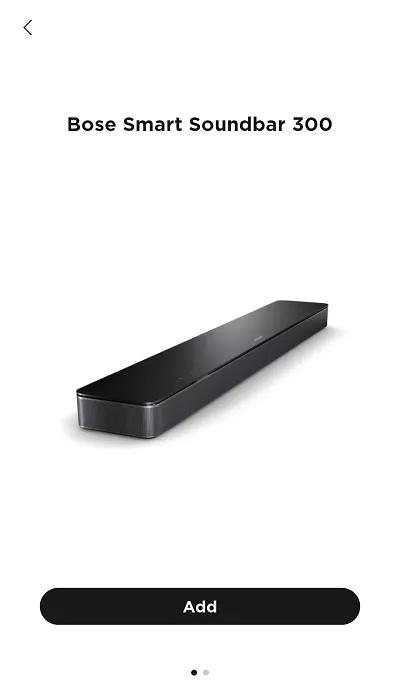
    Add button below product image and product name
    If the app cannot find your product, see the FAQs below.

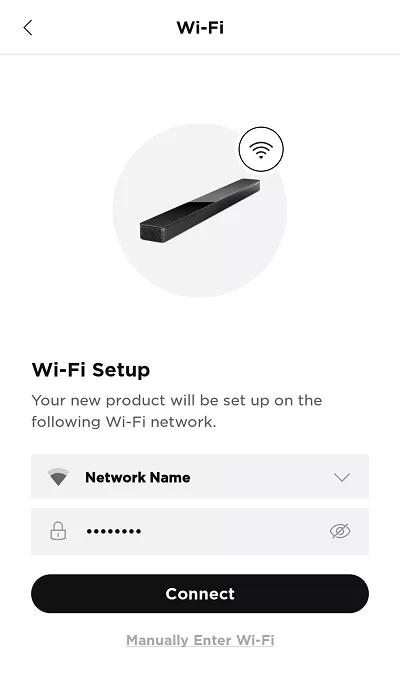
  • Select your wireless network and enter the network password, then tap Connect
    Wi-Fi network name and password fields
    For hidden networks, tap Manually Enter Wi-Fi, then enter the network info

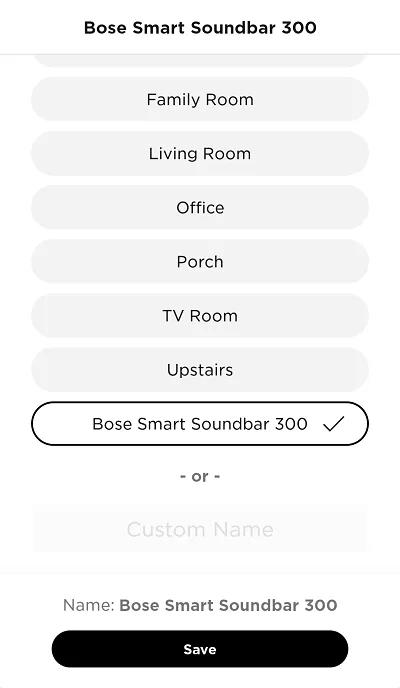
  • Select a name for the soundbar or enter a custom name, then tap Save at the bottom of the screen
    list of room names

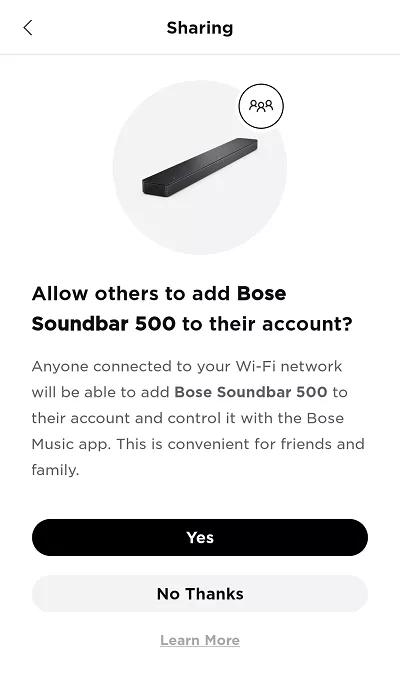
  • On the Sharing screen, select Yes to let other Bose Music accounts on your network use this product also. Or, select No Thanks to keep this product only on your account
    Buttons to enable or disable Sharing

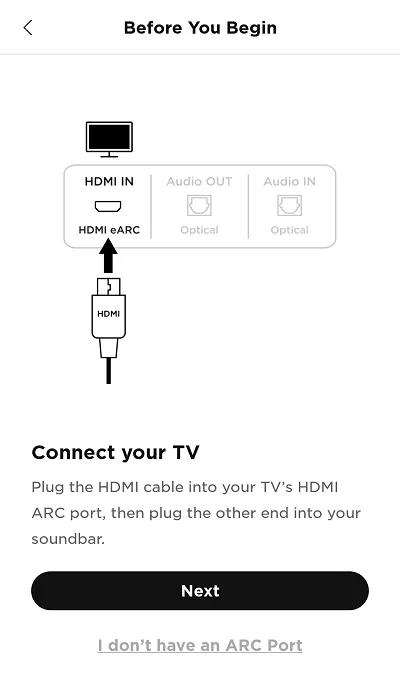
  • Connect an HDMI cable from the HDMI ARC jack on the soundbar to the HDMI ARC (or eARC) jack on the TV, then tap Next
    HDMI ARC (Audio Return Channel) lets the TV to send audio to your soundbar. If the TV does not have an HDMI connection labeled ARC or eARC, see the FAQs below.
    Connect TV with HDMI

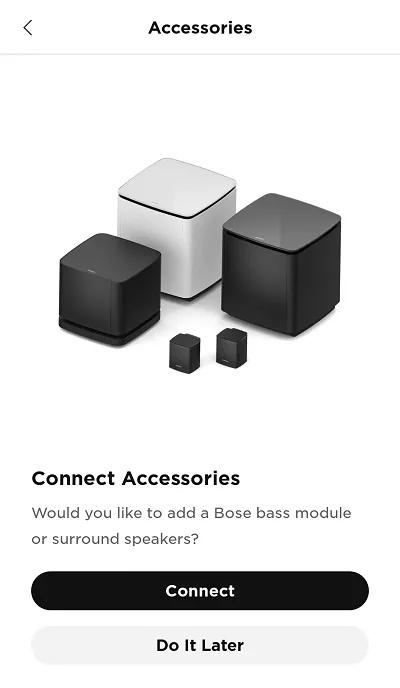
  • If you're using the accessory bass module or surround speakers, tap Connect; otherwise, tap Do It Later
    Connect accessory speakers

  • Select the Alexa to set up a voice assistant. If you don't want to use an assistant or want to add Alexa later, tap Skip in the upper-right corner and see the FAQs below.
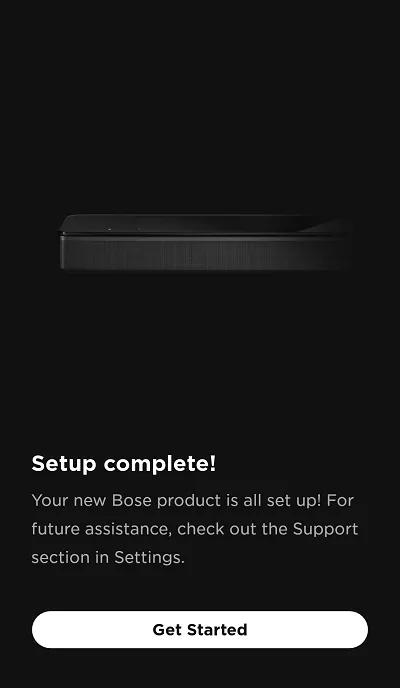
  • Tap Get Started to start using your soundbar
    Setup complete button

Frequently Asked Questions

What do I do if the app does not detect my product?

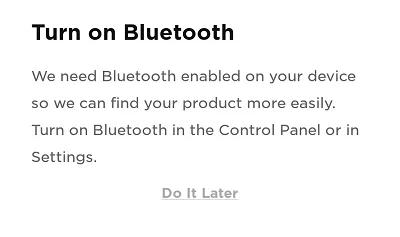
Be sure the device's Bluetooth® function is turned on.

The Bose app uses Bluetooth Low Energy (BLE) to detect nearby Bose speakers. Be sure Bluetooth is enabled on the device running the app.

If Bluetooth is off, the following message will appear when device discovery is initiated:

Check that the device running the Bose app is close to your Bose product.

Keep the device you want to connect close to your Bose product to be sure it is within range of the Wi-Fi network broadcasted by your product

For iOS devices, disable Wi-Fi Assist.

If your device does will not connect to the setup network of your Bose product, go to your device Settings, select Cellular and disable Wi-Fi Assist. Then, tap the Bose network name to connect to it. (Note: Wi-Fi Assist is available on iOS 9 and later.)

On your device, turn Wi-Fi off and back on.

On the device running the Bose app, go to the Wi-Fi settings and turn Wi-Fi off and back on again.

Reset your product.

Much like rebooting a smartphone, your product might need to be reset on occasion to correct minor issues. For more information, see Resetting your product.

Reboot the device running the Bose app.

Electronics might need to be rebooted from time to time to correct minor issues. This is typically done by powering off the device completely and then powering it back on again.

Reboot your router.

Routers may need to be reset from time to time—much like rebooting a computer. Disconnect power from the router for 30 seconds, then wait for it to start up and connect. (Note: Any device connected to the Internet will be interrupted during the reset.)

In your mobile device settings, be sure location and network permissions are turned on for the app.

Location permissions are used by the Bose app to detect and control your product. If location settings are disabled for the app, it will not work properly.
  • For iOS devices:
    1. Go to Settings > Privacy > Local Network and be sure it is not disabled for the Bose app.
    2. Go to Settings > Privacy > Location Services and be sure it is not disabled for the Bose app.
  • For Android devices, touch and hold the app icon, then tap App Info from the pop-up that appears. On the App Info screen, tap Permissions and be sure Your location is enabled.

Close and reopen the Bose app.

The method of closing an app varies by device and operating system:

On an iOS device:
  1. Double-tap the home button to view running apps
  2. Swipe left or right to find the app
  3. Swipe up on the app to close it
On an Android device:
  1. Press and hold the app icon
  2. Select the app info (or the info icon)
  3. Select Force Stop

If you are unable to connect to Wi-Fi using the Bose app, try an alternate connection method.

If your product cannot connect to your network using the normal setup method in the Bose app, try an alternate method. For more info, see Connecting to a Wi-Fi network.

If your router broadcasts more than one network (i.e. 2.4 GHz, 5 GHz, Guest), give the networks different names.

Many routers broadcast multiple networks, like a 2.4 GHz network, a 5 GHz network, and a guest network. If you see multiple networks with the same name when connecting a device to Wi-Fi, some devices might not be connected to the expected network.

In your router settings, try temporarily disabling the 5 GHz network and guest network. If the issue is resolved by using only the 2.4 GHz network, rename he 5 GHz network and guest network to something different than the 2.4 GHz network (i.e. MyNetwork2G, MyNetwork5G. and MyNetworkGuest). This will help you and your devices identify the correct network. (Tip: If you rename a network, any devices that were connected to the previous network name will need to be reconnected to the new network name in the device settings menu.)

In the router settings, try disabling Wireless Isolation mode, Wireless AP mode, or Access Point mode.

Log in to your router and look for an option labeled Access Point / AP mode, Wireless Isolation mode, or Wireless AP mode. This might be located in the wireless settings menu. If enabled, try disabling the option. If there is no improvement, you can always switch back to the previous setting.

If your Wi-Fi network uses an extender (like a Wi-Fi repeater, powerline adapter, or access point), try bypassing it.

Network extenders are used to extend the range of a network to cover a large area. Check if the issue is related to an extender by temporarily unplugging it. Since unplugging it might reduce the range of your network, move your system closer to the main router to test if the issue improves:
  • If it does not improve, the issue is not related to the extender.
  • If it does improve, try reconnecting the extender. Sometimes it can help to connect extenders after connecting to the main network.
  • If it does improve but returns after reconnecting the extender, the issue could be related to the extender, its settings or placement.

Restore the system to its factory defaults and restart the set up process.

For more info, see Resetting your product.
What do I do if my TV does not have an ARC port?

If your TV does not have an ARC/eARC port

You can connect with an optical cable instead. Audio is identical on your system since both cables can supply the audio formats that the soundbar supports. HDMI, however, offers additional benefits such as Consumer Electronics Control (CEC) functionality.

While an Optical connection does not support CEC, see Turning Auto-wake on or off to allow your soundbar to turn on with your tv.
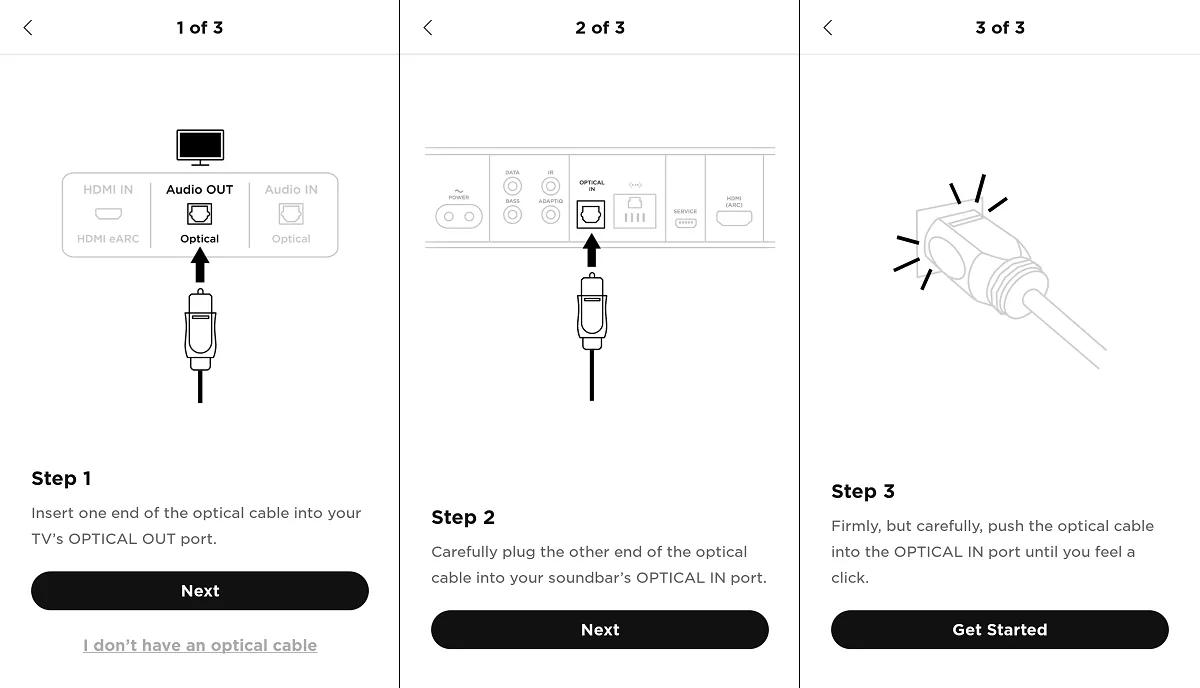
Optical app screens
undefined

To add the Amazon Alexa voice assistant:

Note: If you have multiple products in your household, we recommend setting up the same Alexa account for each product.

  1. In the Bose app icon, tap the Settings icon icon in the upper-right corner.
    Tip: If a different product is shown, tap the My Bose icon icon in upper-left corner then select the desired product.
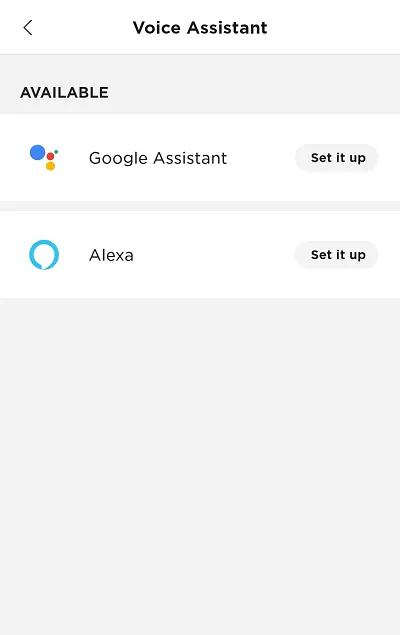

  2. Select Voice Assistant then select Alexa.

     
  3. Follow the app instructions to link your Alexa account.
    • During setup, signing in to your Amazon account links your Alexa voice assistant to your Bose account for Alexa features (e.g. "Alexa, what's the weather?" or "Alexa, set a timer for 10 minutes")
    • During setup, signing in to your Bose account links your Bose products to your Alexa voice assistant so it can control your products (i.e "Alexa, play jazz on [Bose product name]" or "Alexa, mute [Bose product name]")
    • In the Amazon Alexa app, your Bose product appears twice under Alexa Devices. Do not remove either entry: One entry is for Alexa functionality and the other is for Bose product functionality. Additionally, if your product is renamed after initial setup, both entries will have different names in the Alexa app