Was this helpful?
Connecting a Bluetooth Device | Bose SoundLink Micro Portable Speaker (2nd Gen)
You can connect a Bluetooth device using the buttons on your product or the Bose app.
Have you previously connected this Bluetooth device to your Bose product?
Yes.
Use the product controls to automatically connect to a device you've paired before.
Automatic Connection
When you turn on the speaker, it will try to connect to the last two devices it was paired with.
- The devices must be turned on and within 30 feet (9 meters).
- Bluetooth must be enabled on those devices.
- If multi-point connection is turned off, the speaker will only reconnect to the most recent device.
Reconnect to Another Device
Using the Bose App
If Multipoint is enabled, the easiest way to switch between paired devices is through the Bose app.
- Open the Bose app and select your product.
- Go to Source.
- You’ll see a list of your paired devices.
- Turn on the device you want to connect to.
Note: If two devices are already connected, first disconnect the device that is not currently running the Bose app. Then connect the device you want to use.
Using your mobile device's Bluetooth settings
If multipoint is not enabled, or you do not have the Bose app available:
- Open the Bluetooth settings on the device you want to connect.
- Find your Bose product in the list of paired devices.
- Select the product to connect.
Note: If two devices are already connected, connecting from a third paired device will replace the oldest active connection.
No
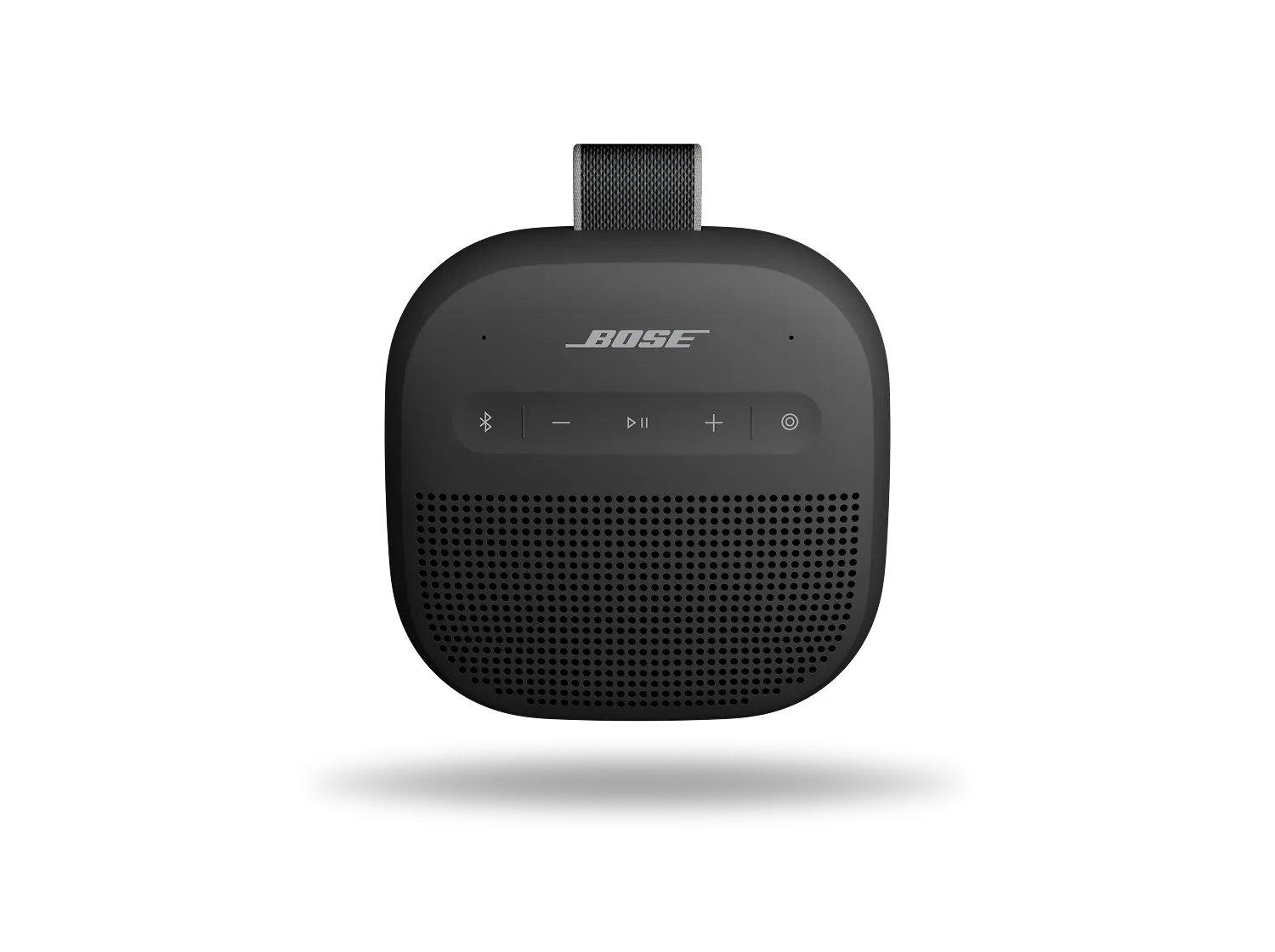
Pair your speaker to a new device

- Press the power
button to turn on your Bose Bluetooth speaker.

- Hold down the Bluetooth
button until the light starts blinking blue. This indicates the speaker is in pairing mode.

- Go to the Bluetooth settings on your device and select the Bose speaker from the list. For more details on different device types, see the section below.
- Once connected, the speaker will either make a sound or the light will stop blinking. You're now paired and ready to use your speaker.