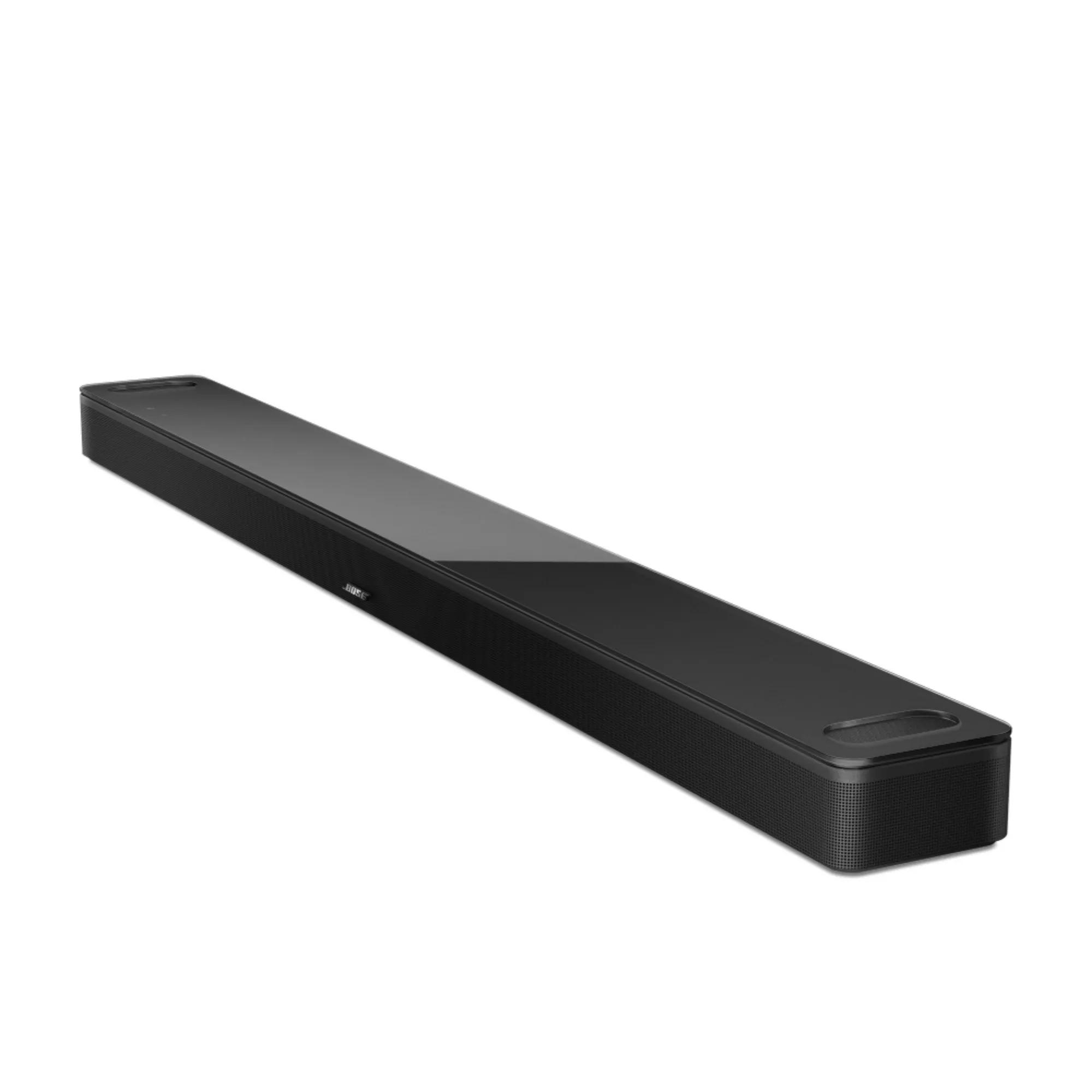
Cannot connect to network during set up | Bose Smart Ultra Soundbar
How is the system connected to the network?
The system is connected to the network through an Ethernet cable
Determine the DHCP server / Dynamic IP / Automatic IP configuration setting of the router.
Check if MAC filtering is enabled on the router and blocking your product.
Install any updates for your router.
Restore the system to its factory defaults and restart the set up process.
If you are unable to connect to Wi-Fi using the Bose app, try an alternate connection method.
Try making the recommended settings adjustments in the settings menu of the router.
For more information, see Recommended router settings for use with Bose Wi-Fi products.
If your Wi-Fi network uses an extender (like a Wi-Fi repeater, powerline adapter, or access point), try bypassing it.
- If it does not improve, the issue is not related to the extender.
- If it does improve, try reconnecting the extender. Sometimes it can help to connect extenders after connecting to the main network.
- If it does improve but returns after reconnecting the extender, the issue could be related to the extender, its settings or placement.
Reboot your router.
The system is trying to connect to the network with Wi-Fi
Be sure the correct network password is entered.
Disable any network connection assistance features on the mobile device.
On iOS 9.0.1 or newer:
- Go to Settings.
- Select Cellular.
- Turn off "Wi-Fi Assist".
- Go to Settings.
- Select Wi-Fi & internet (or Network & internet).
- Select Wi-Fi.
- At the bottom of the network list, select Wi-Fi preferences.
- Turn off the setting that 'switches to mobile data when Wifi is not available'. This may be called "Smart network switch", "Smart Wi-Fi switcher", or something similar as the name of this feature varies by manufacturer and Android version.
Reboot your router.
If your router broadcasts more than one network (i.e. 2.4 GHz, 5 GHz, Guest), give the networks different names.
In your router settings, try temporarily disabling the 5 GHz network and guest network. If the issue is resolved by using only the 2.4 GHz network, rename he 5 GHz network and guest network to something different than the 2.4 GHz network (i.e. MyNetwork2G, MyNetwork5G. and MyNetworkGuest). This will help you and your devices identify the correct network. (Tip: If you rename a network, any devices that were connected to the previous network name will need to be reconnected to the new network name in the device settings menu.)
Check if MAC filtering is enabled on the router and blocking your product.
In the router settings, try selecting a different channel.
Determine the DHCP server / Dynamic IP / Automatic IP configuration setting of the router.
Check that the network security setting is compatible with your Bose product.
Install any updates for your router.
If you are unable to connect to Wi-Fi using the Bose app, try an alternate connection method.
Try making the recommended settings adjustments in the settings menu of the router.
For more information, see Recommended router settings for use with Bose Wi-Fi products.
If your Wi-Fi network uses an extender (like a Wi-Fi repeater, powerline adapter, or access point), try bypassing it.
- If it does not improve, the issue is not related to the extender.
- If it does improve, try reconnecting the extender. Sometimes it can help to connect extenders after connecting to the main network.
- If it does improve but returns after reconnecting the extender, the issue could be related to the extender, its settings or placement.