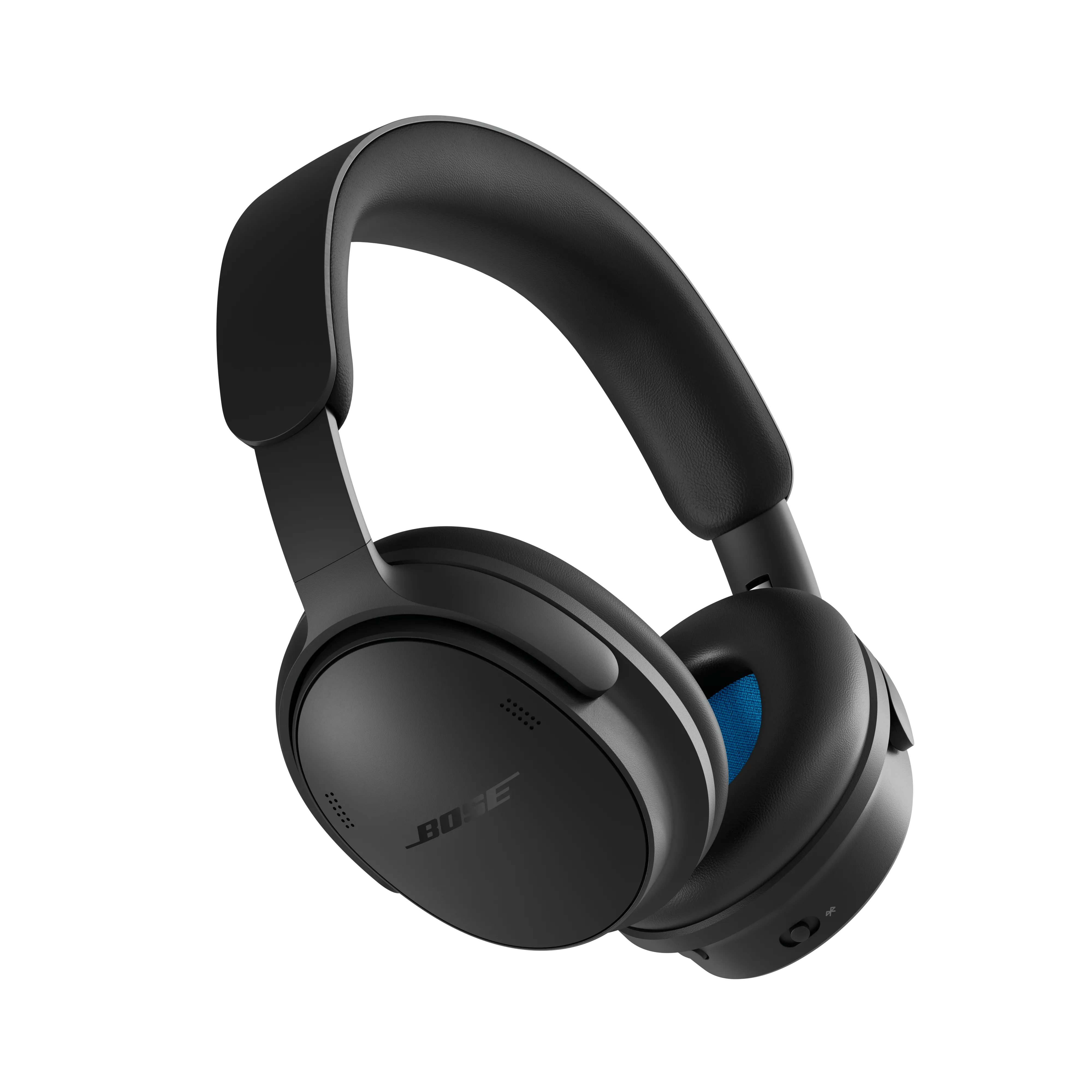
Be sure your product is within 33 feet (10 meters) of the Bluetooth device.
This range can be reduced by obstacles (e.g. walls, doors, appliances, wireless devices, etc.). Try moving the device and product closer together.
Try disconnecting other nearby wireless devices that might interfere with Bluetooth® signal.
Some wireless devices can cause interference with a Bluetooth signal.
Common examples include:-
- 2.4 GHz router
- cordless phone
- wireless speaker adapters
- home security motion sensors
- fluorescent lights
- microwaves
- wireless mice and keyboards
If there are such devices, disconnect one at a time and check if the issue improves. If so, consider relocating your product or the device.
If connected, bypass any adapters or extension cables.
If your product is connected to the device through a USB hub, extension cable, or adapter, disconnect the hub, extension cable, or adapter and connect the product directly to the device. This will help determine whether the issue is related to the intermediary connection.
Reset your product.
Much like rebooting a smartphone, your product might need to be reset on occasion to correct minor issues. For more information, see Resetting your product.
Reboot the connected device.
Electronics might need to be reset from time-to-time—much like rebooting a computer. Power off the device, then power it back on and try again.
Disconnect any secondary Bluetooth devices that may be connected to your Bose Product
When in multipoint, a secondary Bluetooth device could possibly receive a text/email notification and try to broadcast audio to your product. This could interrupt the primary Bluetooth connection/audio stream which effects Bluetooth bandwidth, causing intermittent audio or sporadic Bluetooth connections.
To eliminate any interruptions, we recommend turning off Bluetooth on your secondary device which is connected to your Bose product.
Try disabling the Multi-point connection in the app
If you find that notifications from your secondary device interrupt your listening experience on your primary device, you can turn off Multi-point.
In the Bose app, go to Settings>Bluetooth Connections and toggle Multi-point connection to 'off'. This will disconnect your secondary device.
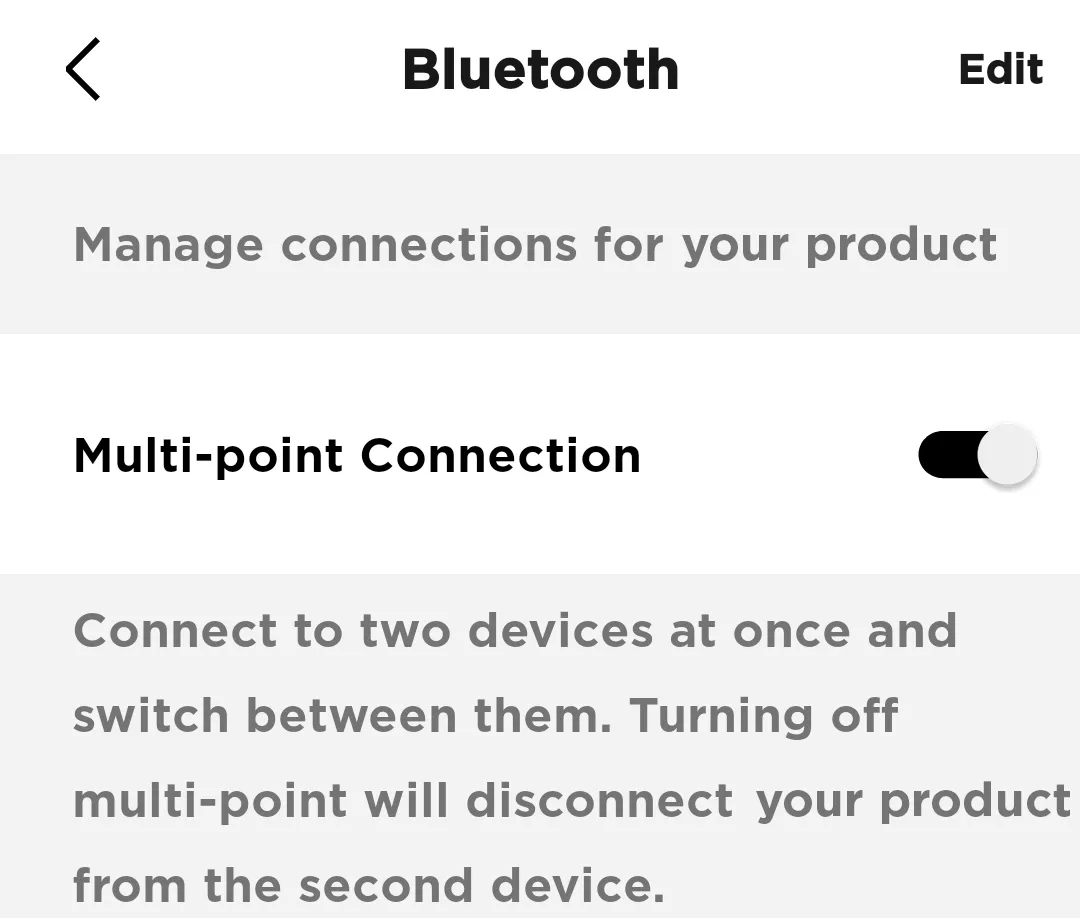
Note: You will only be able to connect to one device at a time. If you want to connect to two devices simultaneously, toggle Multi-point connection back to 'on'
Try a different app.
If the issue only occurs with a particular app, it is likely related to the app or app settings.
Try playing different types of media.
Different media types might produce different quality sound. For example, Podcasts, music stored locally on your phone, MP3s, streaming music services (Spotify, Pandora), videos on your device or stored in the cloud, etc. can all vary in quality. Try different media to determine if the issue is specific to certain media.
If you're experiencing intermittent audio during phone calls, check your cellular reception.
This issue may be caused by a weak connection to the cellular network. Enabling Wi-Fi calling in your phone's settings while connected to your home network can help, or you can try the call again once the reception improves.
Clear your Bose product memory of previously-connected Bluetooth® devices.
On the Bluetooth device, remove all entries of your Bose product from the Bluetooth menu. Then, try connecting again.
In the Bluetooth menu of the Bluetooth device, you'll find a list of Bluetooth products that have been previously connected. Your Bose product might show up one or more times in the list (i.e. any Bose entries that begin with "LE-"). Select each entry for your product and remove it by selecting Forget, Unpair, Delete or something similar. After, try connecting again. For more info, see Connecting a Bluetooth device.
Try connecting a different Bluetooth device.
If your Bose product can connect to another device, Bluetooth functionality is working. In cases like this, the issue could be with the first device or its settings.
Plug in a different pair of headphones.
Connect another pair of headphones to the audio device to determine if the issue is with the device or its settings.
Check for and install any available product updates.
Keep your headphones performing at their best by checking for updates at btu.bose.com. Software and firmware updates can provide new features, performance improvements, stability enhancements, and bug fixes. You can also receive updates automatically whenever your headphones are connected to the Bose app. To manually check for and install available updates, follow the instructions in Updating Your Headphones.