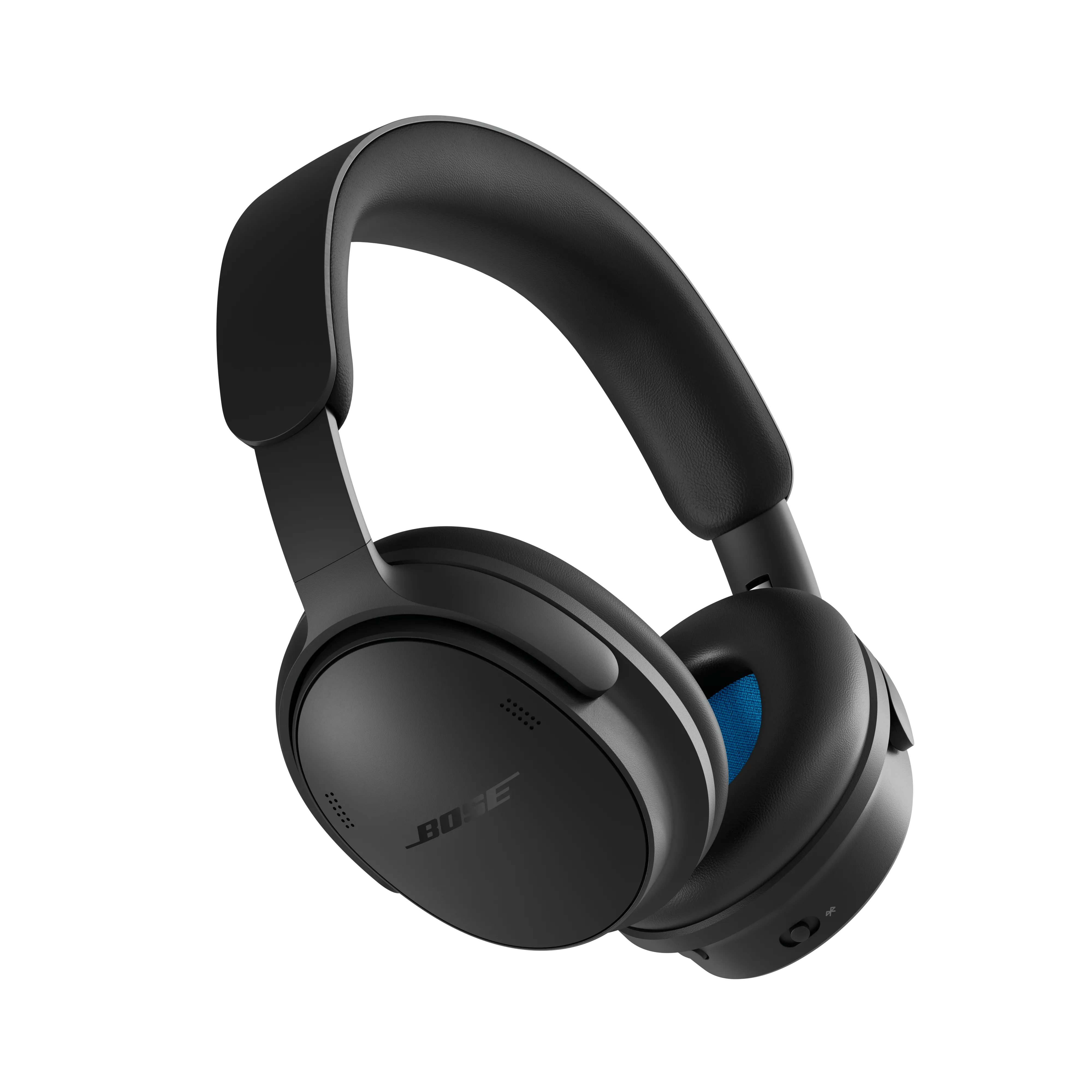
No audio | Bose QuietComfort Headphones (2nd Gen)
bose-quietcomfort-headphones-(2nd-gen)
Bose QuietComfort Headphones (2nd Gen)Sold from 2026

No audio | Bose QuietComfort Headphones (2nd Gen)

Confirm the headset is connected to the Bluetooth® device.

Power on the headset, then press any button to view the Bluetooth and battery lights. If the Bluetooth light is flashing or not lit, the headset is not connected. Try reconnecting the headset in the Bluetooth settings of the device. If is still doesn't connect, see Cannot connect a Bluetooth® device.

Reboot the connected device.

Electronics might need to be reset from time-to-time—much like rebooting a computer. Power off the device, then power it back on and try again.

Be sure your product is within 33 feet (10 meters) of the Bluetooth device.

This range can be reduced by obstacles (e.g. walls, doors, appliances, wireless devices, etc.). Try moving the device and product closer together.

Check the volume level on the source.

Its possible the volume is too low or muted. Increase the volume gradually

Reset your product.

Much like rebooting a smartphone, your product might need to be reset on occasion to correct minor issues. For more information, see Resetting your product.

Try a different app.

If the issue only occurs with a particular app, it is likely related to the app or app settings.

Determine if the issue occurs with another Bluetooth® device.

The source device currently paired to your product may be causing the issue. Try pairing a different Bluetooth source to see if the issue is isolated to that device.

Clear your product's memory of previously paired Bluetooth® devices, then reconnect.

Your product remembers the last several devices it connected to so it can quickly reconnect to them. In case of an issue with the device memory, clear it, then reconnect your device. For more info, see Clearing the product memory of paired Bluetooth® devices and Connecting a Bluetooth® device.

Remove your product from the memory of the Bluetooth® device, then try again.

In the Bluetooth settings of the Bluetooth device, find the list of previously connected products. Remove your product from the list, then reconnect it to the device. For more info, see Connecting a Bluetooth® device.

Try connecting the device with USB instead

If you do not hear audio when connected with Bluetooth®, you can use a USB-C connection as an alternative audio source.

  1. Connect one end of a USB-C cable to the USB-C port on the headphones.
  2. Connect the other end of the cable to a USB port on your device.
  3. Select the headphones as the audio output device on your computer or mobile device, if necessary.

Audio should now play through the USB-C connection.

If connected, bypass any adapters or extension cables.

If your product is connected to the device through a USB hub, extension cable, or adapter, disconnect the hub, extension cable, or adapter and connect the product directly to the device. This will help determine whether the issue is related to the intermediary connection.

Check the condition of the USB cable.

Inspect the USB cable for any signs of damage, including cuts, fraying, bent connectors, exposed wires, or excessive wear.

Damage to the cable can cause charging issues, audio interruptions, connectivity problems, or prevent the headset from being detected by your device.

If the USB plug or any part of the cable is damaged, replace the USB cable and test the connection again.

Note: If available, try a different compatible USB cable to determine whether the cable is causing the issue.

Try connecting the headset to a different device.

If the headset works with one device but not another (with or without an adapter), there may be a compatibility issue with that particular device. For known compatibility info, see Compatibility Guide.